In short. Search File Explorer for a file and the green bar in the address bar crawls before results appear. The Windows Search index behind that box is slow to build as well. The first pass can take a couple of hours, and it uses CPU and disk. Everything is a free program that indexes only file names, so results appear as you type. It installs with one winget command. A handful of search operators narrow the list by size, date and extension.

A free app I built myself. Give it a try.
This post covers four things. First, why Explorer search and the Windows index are slow and heavy, and how Everything differs. Next, how to install it with winget and check that your drives were picked up. Then a table of search syntax such as spaces, !, ext:, size: and dm:. After that come combinations you will actually type. Last, where Everything is weak: USB sticks and searching inside files.
File Explorer search is slow because only some folders are indexed
Windows finds files through an index that the Windows Search service builds in advance. The default Classic mode indexes only your Documents, Pictures and Music folders plus the desktop. Search outside that list, say your Downloads folder or a D: drive. Windows then walks the files one by one, with no index. Microsoft says that with an index such a search takes a fraction of a second. Without one, it can take minutes.
Widening the index brings its own problem. The Windows index reads every property of a file, not just the name. For files with text, it indexes the contents too. That is why the first pass can take a couple of hours. Microsoft notes that Enhanced mode, which indexes the whole PC, may use more system resources. Past about a million items, it warns, indexing can cause high CPU, memory or disk use.
On top of that, the indexer deliberately slows down while you are using the PC. If disk or CPU use is high, it stops and waits for a quieter moment. So the busier the PC, the later the index finishes. Until then, some files can be missing from results.
Everything remembers only names, so it is ready in seconds
Everything indexes file and folder names only. It also keeps size and date modified, but it never reads file contents, so it gets ready fast. The developer says a fresh Windows 11 install of about 250,000 files indexes in about 5 seconds. A million files take about a minute. At 1,000,000 files it uses about 100 MB of memory and 45 MB of disk.
Once the index exists, Everything reads each NTFS drive's change log (the USN Journal). It applies only what changed. Download a file or rename one and it shows up in results right away. Windows keeps changes made while Everything was closed in that same log. Restart it and it catches up without missing anything.
| Comparison | Windows Search index | Everything |
|---|---|---|
| What it indexes | Every file property, plus the contents of text files | File and folder names, size, date modified |
| Default scope | Documents, Pictures, Music and the desktop | Every fixed NTFS drive on the PC |
| First index | Up to a couple of hours | About 5 seconds for 250,000 files |
| Index size | Under 10% of the indexed files | About 45 MB of disk for 1,000,000 files |
| Searching contents | Fast, because contents are indexed | Possible but slow |
Install with one winget line and check that your drives are picked up
On Windows 10 or 11, open Terminal or Command Prompt and run this line.
winget install voidtools.EverythingAs of November 2026, winget installs the stable release 1.4.1.1032. The developer, voidtools, distributes it as freeware. The download page also offers a 1.5 beta. If you are new to Everything, start with the stable release. Every search in this post works on the stable release as written.
If you start it and the result list is empty, Everything cannot read your drives. It reads the file list of NTFS drives directly. That needs administrator rights or the Everything Service. The service is installed by default. If the list is still empty, open Tools > Options > General and check Everything Service. With the service on, Everything itself runs fine without administrator rights.
Search syntax: join the pieces with spaces
Type a word in the search box. Every file and folder with those letters in its name appears at once. Add the syntax below to keep only what you want, joining the pieces with spaces.
| Syntax | Meaning | Example |
|---|---|---|
| Space | Name contains both words | report 2026 |
! | Exclude names containing the word | report !draft |
* | Any run of characters | *.mp3 |
Contains \ | Match the folder path too | \downloads |
ext: | Extension, several separated by semicolons | ext:docx;xlsx;pdf |
size: | File size | size:>1gb, size:10mb..50mb |
dm: | Date modified | dm:today, dm:yesterday |
parent: | Only directly inside that folder | parent:c:\windows |
folder: | Folders only | folder: photos |
When either word will do, join them with a vertical bar. invoice|contract finds files with either word in the name. Put names that contain spaces in double quotes, as in "C:\Program Files".
Combinations worth remembering
In practice you will use a few combinations more often than any single operator.
- Files downloaded today:
\downloads dm:today - Word, Excel or PDF files with "invoice" in the name:
invoice ext:docx;xlsx;pdf - Excel files you changed yesterday:
ext:xlsx dm:yesterday - Every file over 1 GB on all drives:
size:>1gb - Executables over 10 MB inside the Windows folder:
c:\windows\ ext:exe size:>10mb
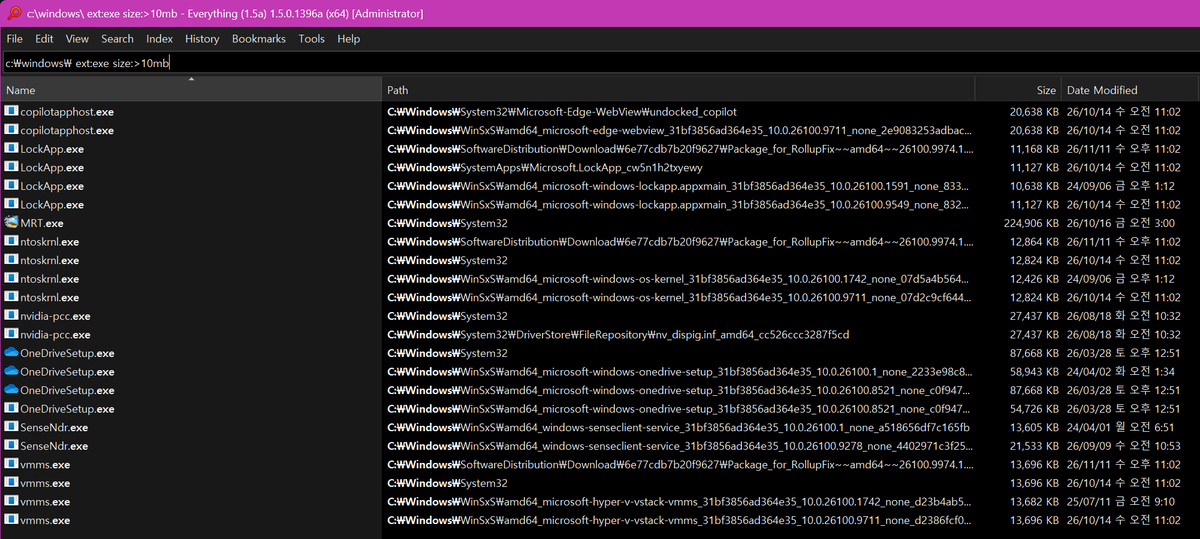
The screen above is combination 5 entered in the 1.5 alpha installed on my PC. As soon as the query was in, 23 files appeared with their path, size and date. Double-click a result to open it. Open Path in the right-click menu opens the folder that holds it. Save the searches you use often in the Bookmarks menu so you never have to type them again.
Finding big files as in combination 4 is fast with Everything when you know the condition. When the culprit is unknown, the treemap in Catching Disk Hogs With WinDirStat works better. It draws file sizes as areas, so the culprit catches your eye first.
Where Everything is weak: USB sticks and file contents
By default Everything indexes only the fixed NTFS drives attached to the PC. USB sticks formatted as FAT32 or exFAT and network drives must be added separately. Use folder indexing in the options. The official documentation says folder indexing is slower than NTFS indexing. If you swap USB sticks often, expect results to lag behind.
There is also content: for searching inside files. Contents are not indexed, so it is very slow. Add an extension or folder condition, as in ext:docx content:contract. That cuts down the files it has to read. For searching by words inside documents, use Windows Search, which indexes contents. Use Everything for finding by name.
Summary
File Explorer search is slow because it walks unindexed folders one by one. The Windows index is heavy because it reads contents too. Everything indexes only file names, is ready in seconds, and shows results as you type. Knowing just ext:, size: and dm: is enough to narrow down the file you want.
Open a terminal now and run winget install voidtools.Everything. Then type size:>1gb into the search box.