In short. When the bar for the C: drive turns red, most people empty the Recycle Bin first. A few hundred megabytes come back, and a few days later it is red again. The files actually eating the space are in neither the Recycle Bin nor the Disk Cleanup list. WinDirStat is a free program that sweeps a whole drive and draws file sizes as rectangle areas. A big file is a big rectangle, so you spot the culprit by eye.

A free app I built myself. Give it a try.
Why emptying the Recycle Bin does not give the space back
The Recycle Bin holds only files you deleted. What fills the drive is files you never deleted and do not remember creating. Disk Cleanup and Storage Sense are the same. They check a predetermined list and leave everything else alone. That list is temporary files, update leftovers and thumbnails.
What eats the space is mostly outside that list. Virtual machine disk images. Caches that developer tools downloaded. Game update files. Previous versions stacked up by a backup program.
They are all legitimate files, so cleanup tools do not see them as candidates for deletion. On my own C: drive, a single virtual disk file created by Claude Desktop was taking 7.5GB. Emptying the Recycle Bin a hundred times would never surface it.
Install it with one winget line
Windows 10 and 11 include winget out of the box. Open a terminal or a command prompt and one line is all it takes.
winget install WinDirStat.WinDirStatThe current stable version is 2.8.0, released on 2 August 2026. There is no homepage to hunt for an installer on, and no bundled adware to untick during setup. It is open source under the GPL, free for individuals and companies alike. Give it administrator rights when you run it and it sweeps other user accounts' folders too.
Area is file size
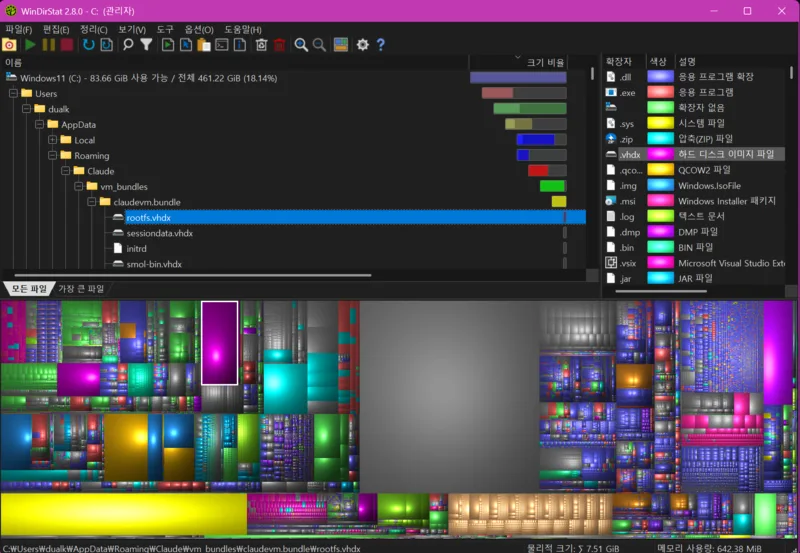
The coloured rectangles filling the bottom half of the window are the treemap. The whole picture is one drive, and one rectangle is one file. Area is directly proportional to file size, and colour means file extension. So there are no numbers to read and compare. Whatever looks big is the file eating the most space. (The screenshot is from a Korean-language install; the layout is the same in English.)
The magenta vertical bar with the white outline is the 7.51GB virtual disk file mentioned above. Click a rectangle and that file is selected in the folder list at the top. Pick a folder in the list and you see what part of the treemap it occupies. The list on the right is a total per extension. "Is it videos or installers" is answered immediately as well.
Finding it does not mean deleting it
Not every big file is rubbish. You have to separate what can go from what must not be touched.
| What shows up large in the treemap | What to do |
|---|---|
| Installers and old ISOs in Downloads | Safe to delete |
| Virtual machine or Docker images you no longer use | Delete from that program |
| Caches from games or video editors | Clear from that program's settings |
| pagefile.sys, hiberfil.sys | Do not delete; resize them in Windows settings |
| Files inside Windows and Program Files | Leave alone |
Big files created by an app are safer cleared from that app than deleted directly. The program then never fails looking for a file that is gone. Once you have checked a file, right-click it in the WinDirStat list. Open it in Explorer or delete it there.
Summary
The Recycle Bin and Disk Cleanup sweep only a fixed list. They miss the files that really eat space. WinDirStat draws file sizes as rectangle areas, so you see which file is the culprit at a glance. Installing it is one line: winget install WinDirStat.WinDirStat.
Open a terminal now, install it and scan the C: drive once. When the scan finishes, click the largest rectangle. The name of the file that has stolen your space for months appears at the bottom.