Quick start
Connect to the Wi-Fi you want to inspect
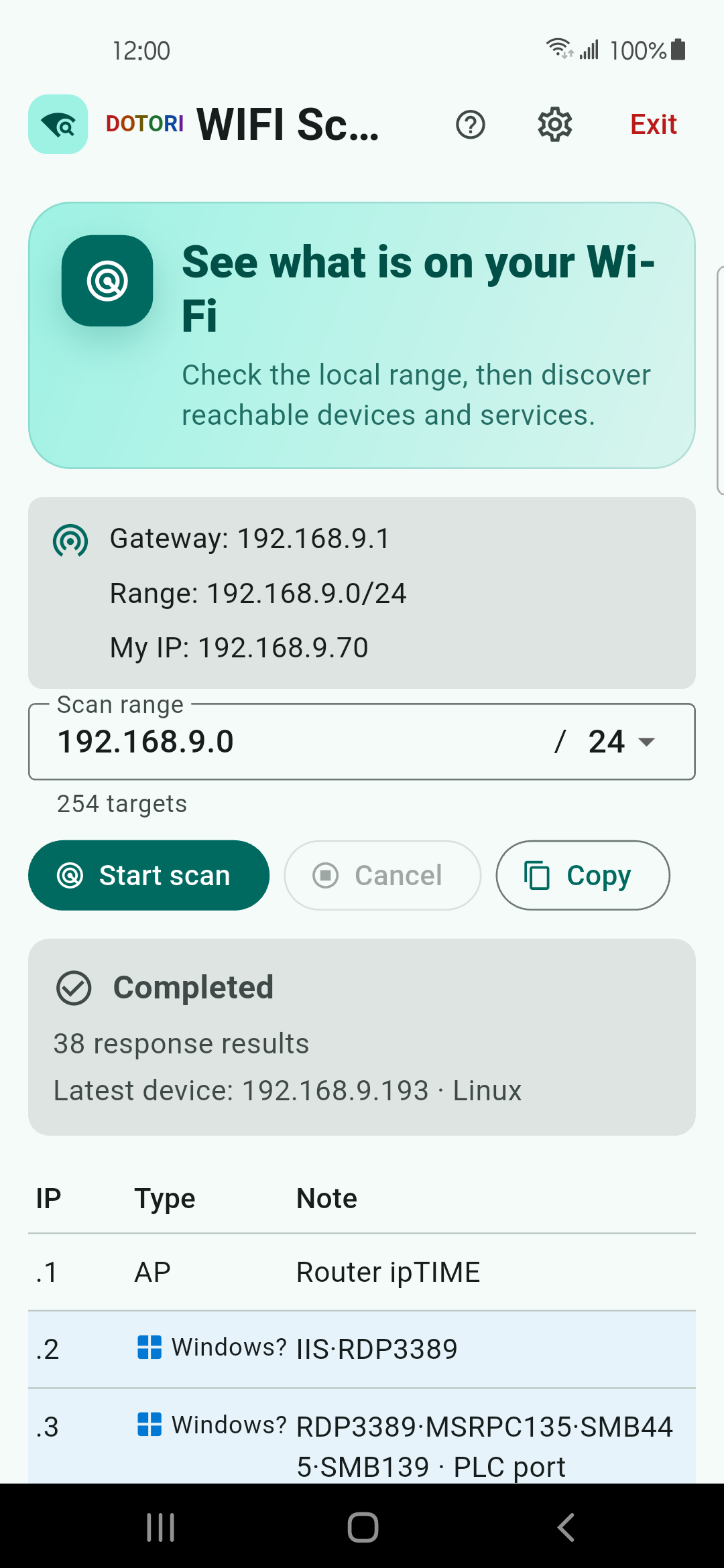
The app derives the phone address, gateway, and scan range from the active Wi-Fi. Mobile data or an offline phone does not provide a local range to scan.
Review network access
Allow the requested nearby Wi-Fi access. It is used to read network information, not for location. If the subnet cannot be determined, review the estimated
/24range or choose Enter CIDR manually.Check the target range
Confirm the gateway, the phone's address, the CIDR, and the estimated target count. Scan only networks and equipment you own or are authorized to inspect.
Press Start scan
Discovery first checks addresses, then analyzes the devices that answered. You can cancel the scan; completed results remain available.
Read the results
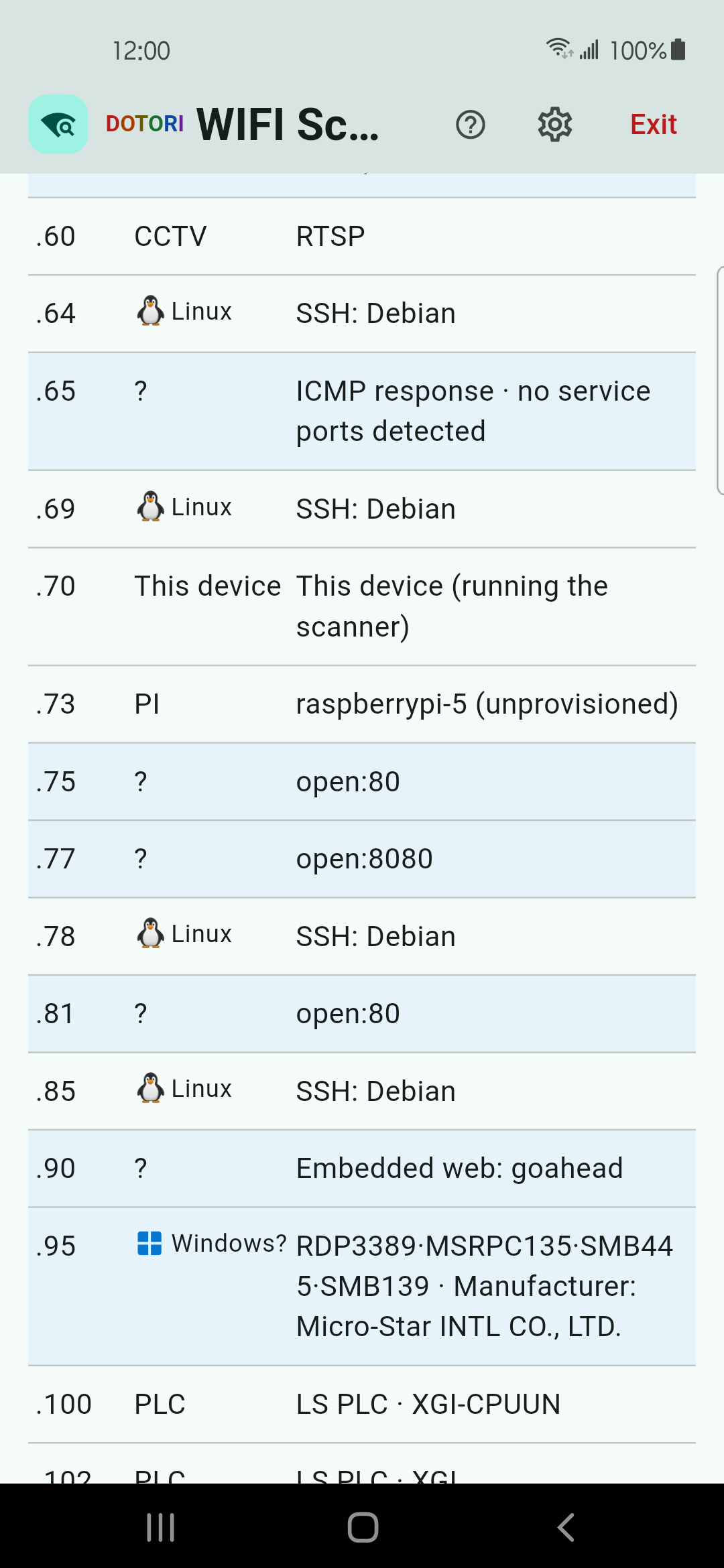
- Type is the app's best classification of the responding device.
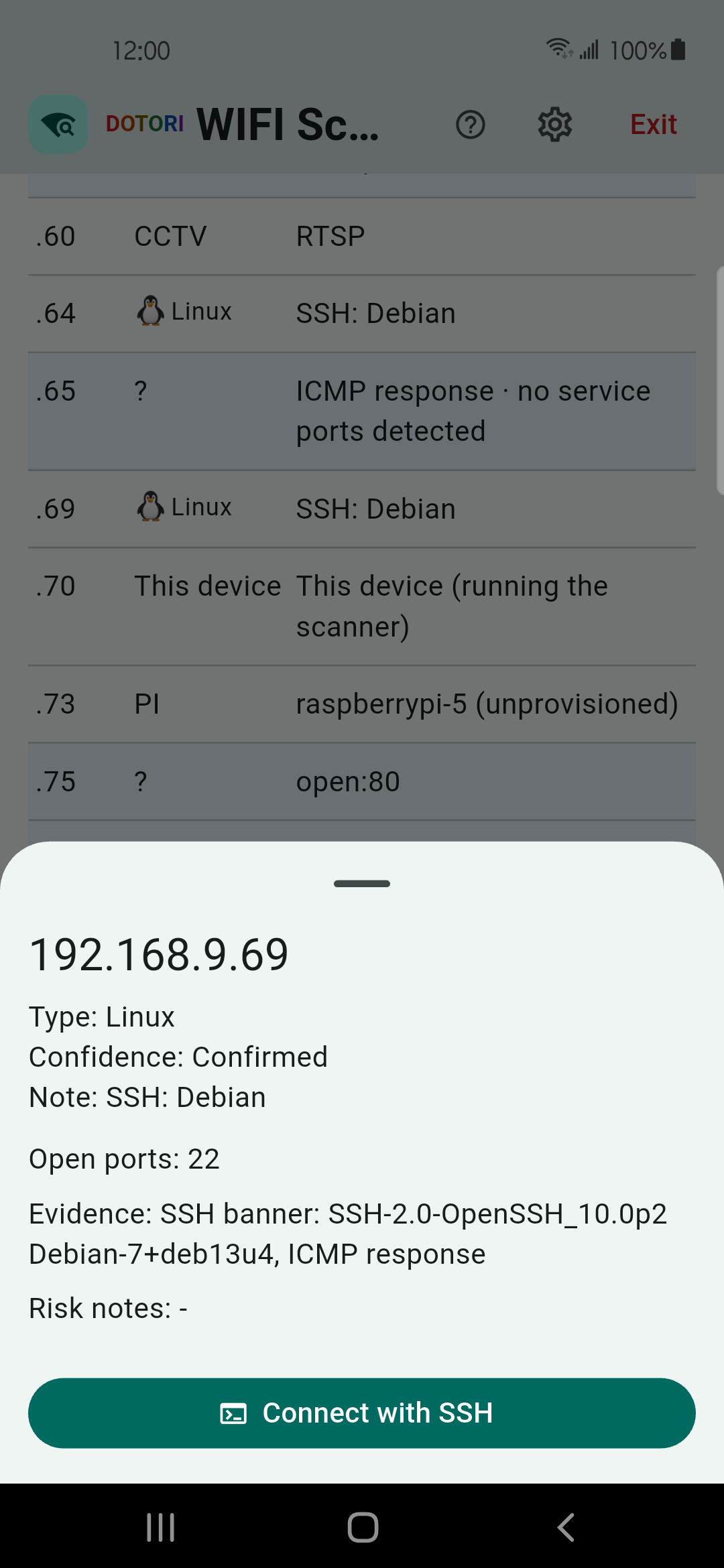
- Confidence: Confirmed means stronger evidence agreed; Candidate means the evidence is useful but not conclusive.
- Open ports show reachable services observed during this scan, not every service that may exist.
- Evidence records why a name or type was assigned. A product identity is not proof that the device is trusted.
- Risk notes call out sensitive or industrial operations.
Not detected does not mean absent. Client isolation, VLANs, firewalls, wired control networks, sleeping devices, and silent services can all hide a device from a phone on Wi-Fi.
Open discovered services
- Open HTTP: opens the device's own web interface in the phone browser. Administration remains in that interface.
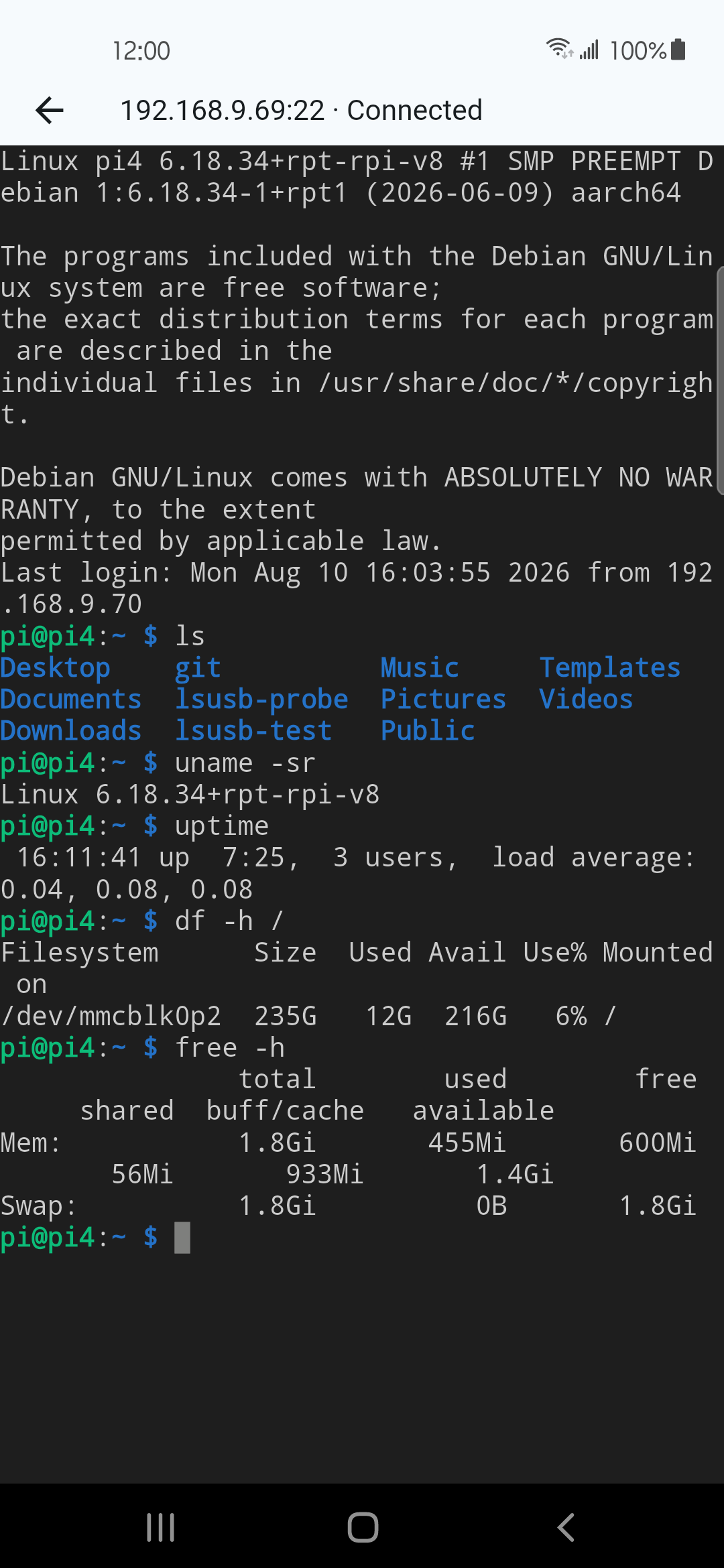
- Connect with SSH: opens Dotori SSH Terminal with the host and port. Credentials are not placed in the handoff link and must be entered in the SSH app.
- EtherNet/IP identity lookup (advanced): sends packets to industrial equipment. Use it only with explicit site-administrator approval.
- Copy: copies scan data as CSV for your own records.
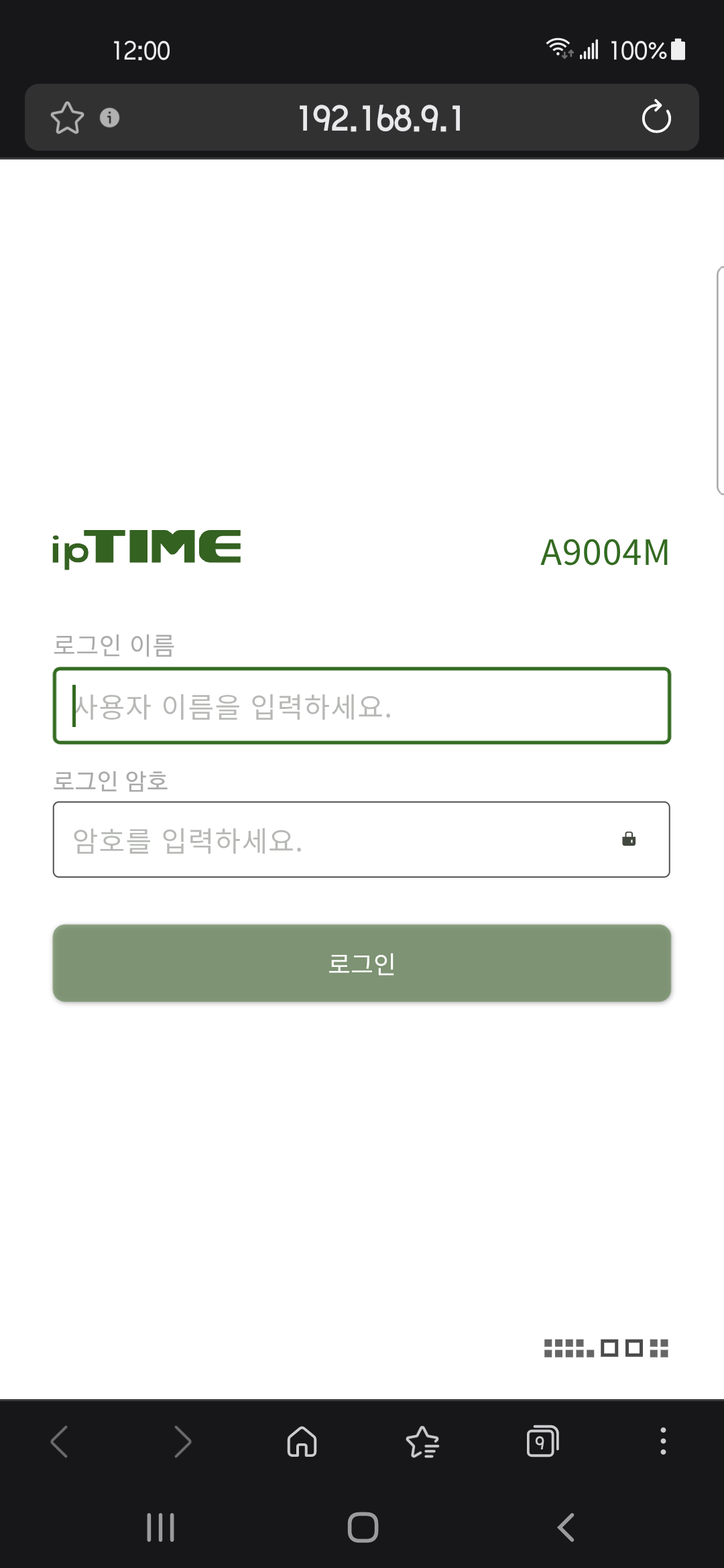
Scan settings
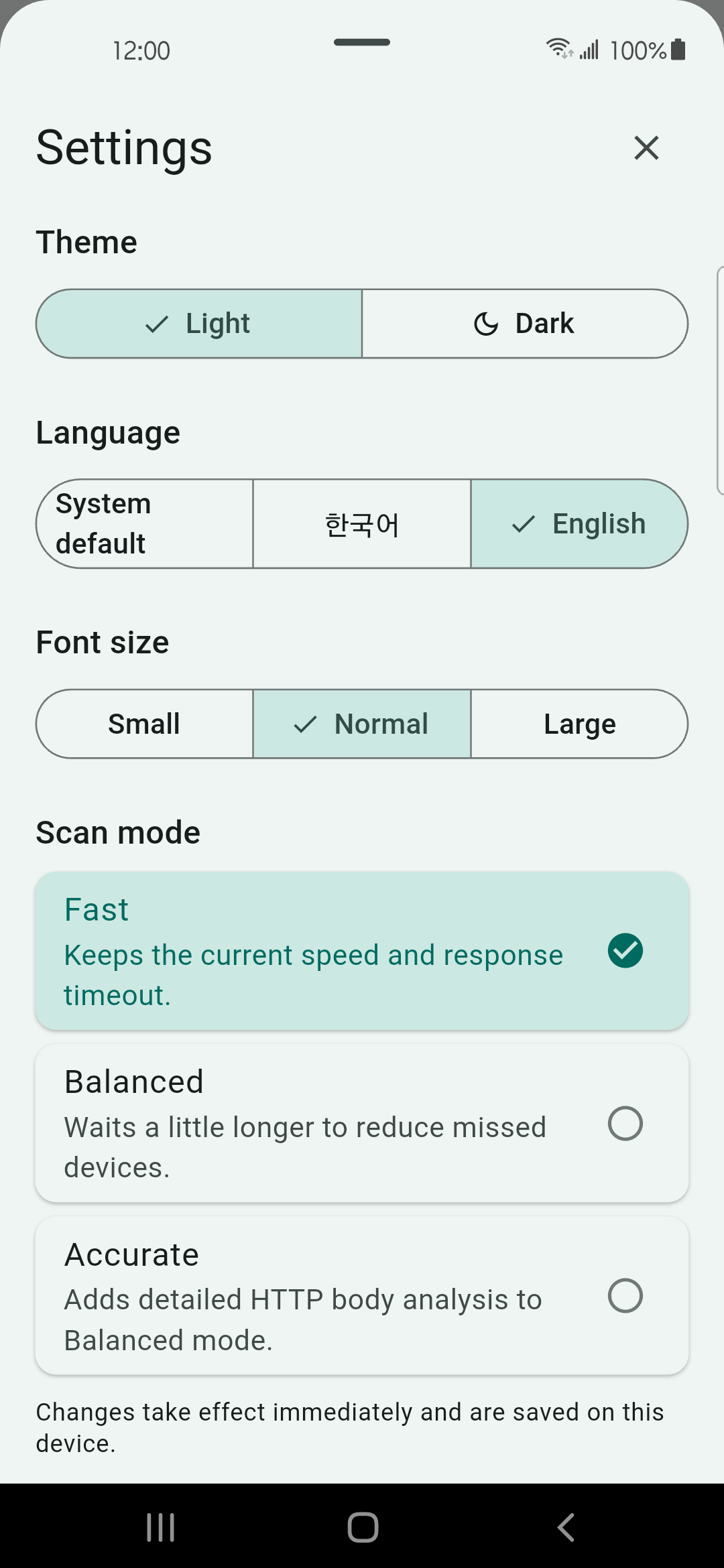
- Fast: uses the shortest response wait.
- Balanced: waits longer to reduce missed devices.
- Accurate: adds detailed HTTP body analysis to Balanced mode.
- Theme, font size, and language changes apply immediately and are stored on the phone.
Troubleshooting
| Symptom | What to check |
|---|---|
| Wi-Fi connection required | Connect the phone to Wi-Fi rather than mobile data, then press Retry. |
| The range cannot be determined | Allow nearby Wi-Fi access. If the subnet remains unavailable, verify and enter the CIDR manually. |
| No devices answer | Check client isolation, VLANs, device firewalls, sleeping devices, and whether the chosen CIDR is correct. Try Balanced or Accurate mode. |
| A known device has the wrong type | Open its detail and read the evidence. Treat Candidate results as hints, not authoritative identity. |
| SSH or HTTP will not open | Confirm that the listed port is still reachable. Install Dotori SSH Terminal for SSH handoff; for HTTP, check whether the browser can reach the local address. |
Permission and privacy
The app requires Internet, network-state, Wi-Fi-state, and nearby Wi-Fi access to inspect the local network. Nearby Wi-Fi access is declared as not used for location. Scan results and private-network addresses are not sent to the advertising SDK. Read the full privacy policy.