Connect to a host
Confirm authorization
Use SSH only on systems and networks you own or are authorized to administer. Make sure the SSH service is running and that you know its port.
Enter a known target
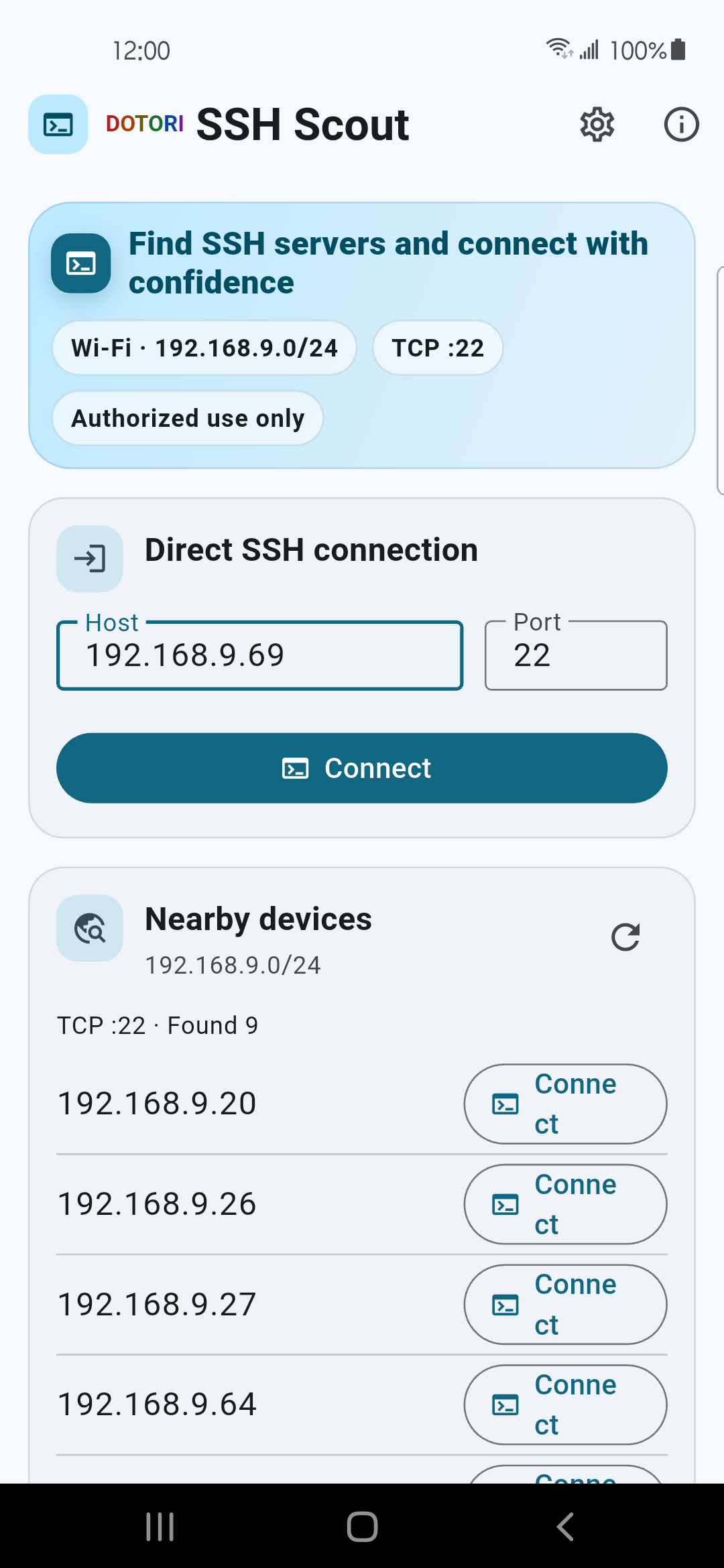
Under Direct SSH connection, enter an IP address or hostname and a port—normally
22—then press Connect. Direct connection does not require a Wi-Fi discovery scan.Or discover the service
On the current Wi-Fi, scan the selected TCP port in the derived local range and choose a responding host. An open port is a candidate, not proof that the service is SSH.
Accept a handoff from WiFi Scanner
Dotori WiFi Scanner can open this app with the host and port filled in. The handoff never carries a username or password.
Credentials and host keys
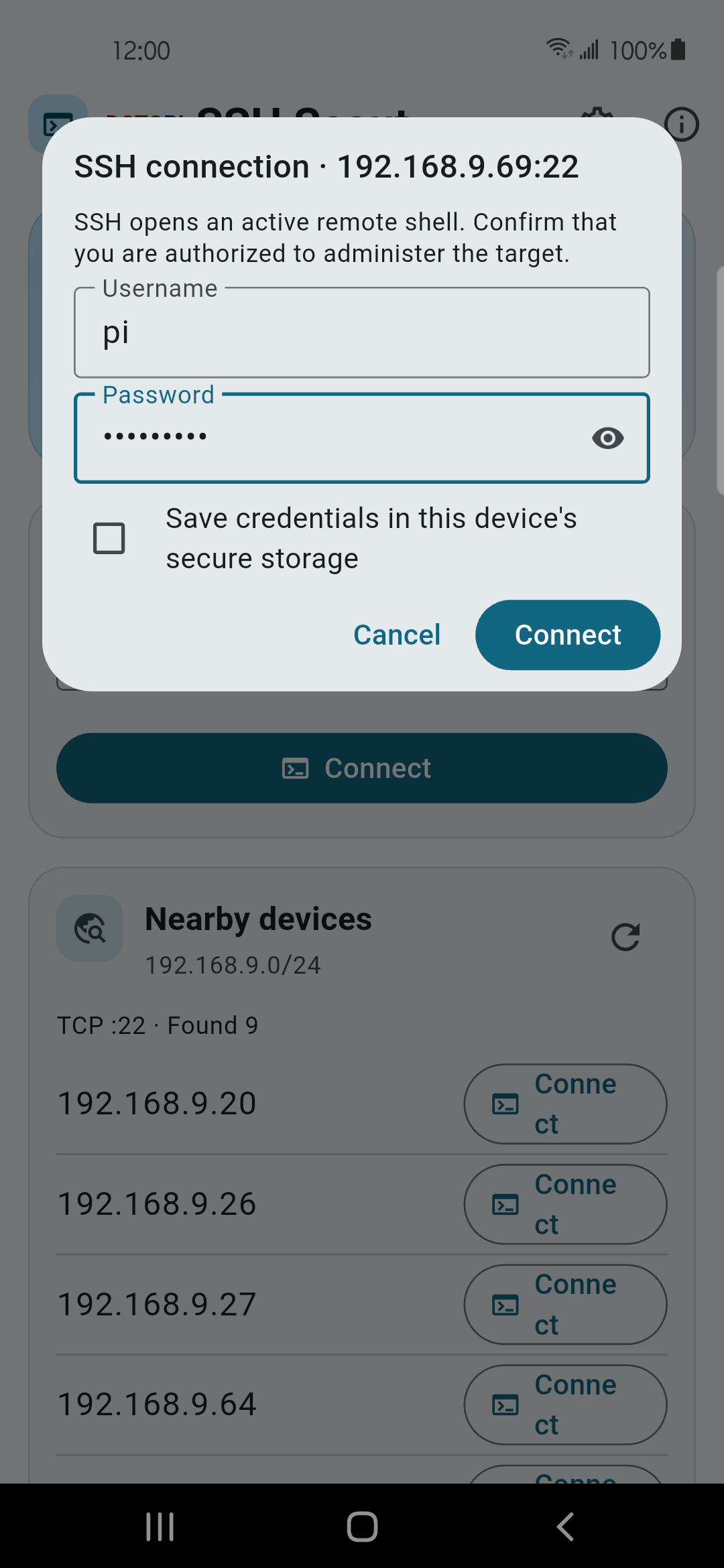
Enter the account
Provide the username and password in the connection prompt. Save credentials only when you want them retained for this host and port. This version supports password authentication, not private-key authentication.
Verify the first host key
On first connection, compare the displayed key type and SHA-256 fingerprint with a value from the server administrator or another trusted channel before accepting it.
Stop when a saved key changes
A changed host key can be legitimate after a reinstall or key rotation, but it can also indicate interception. Do not replace the saved fingerprint until the new value is verified independently.
Passwords and host keys answer different questions. Credentials prove the user to the server; the host key helps the user recognize the server.
Use the terminal
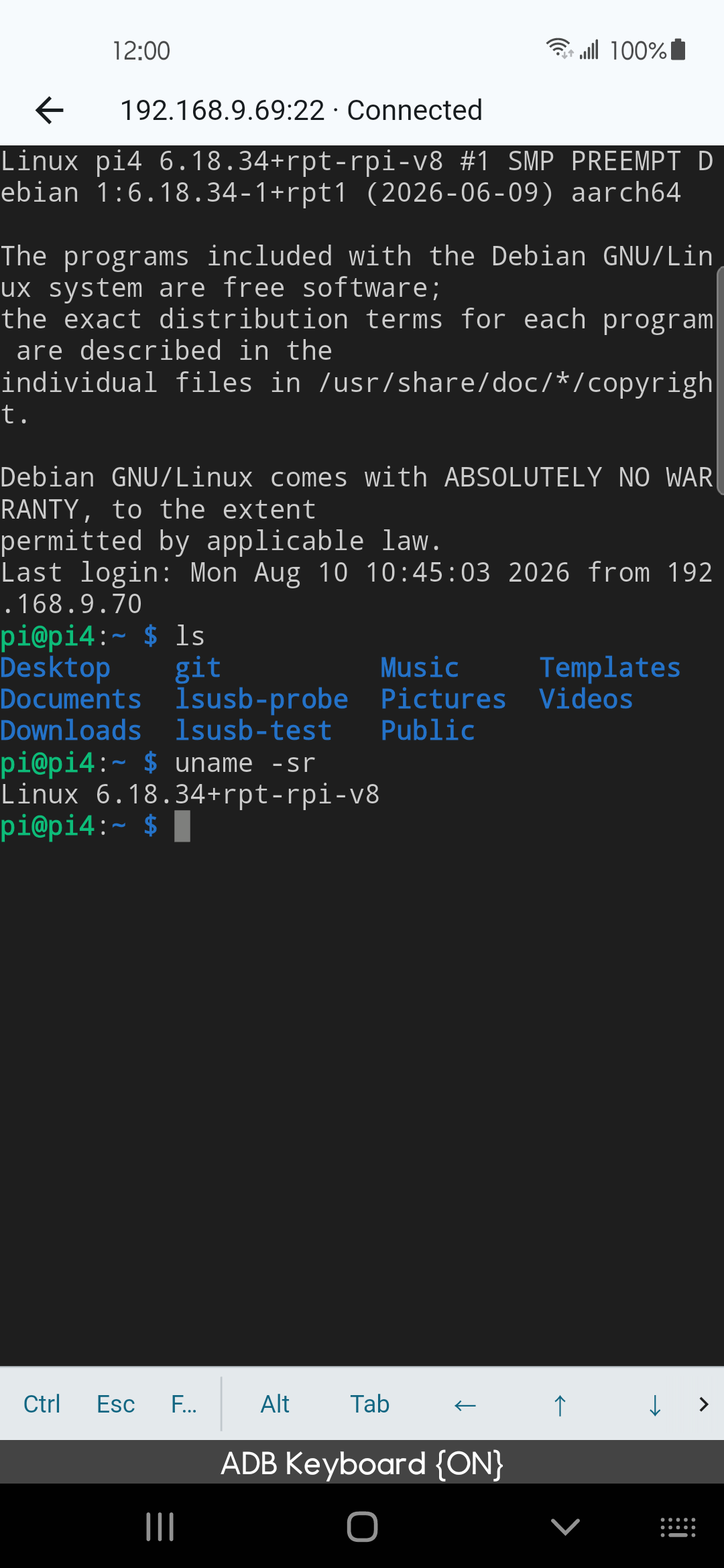
- Commands run directly on the connected host; there is no droidactor proxy server.
- Use the modifier and arrow-key bar for keys that are awkward on a phone keyboard.
- Close the session when work is finished, especially before changing networks.
- The remote server controls command history, shell behavior, permissions, and audit logging.
Settings
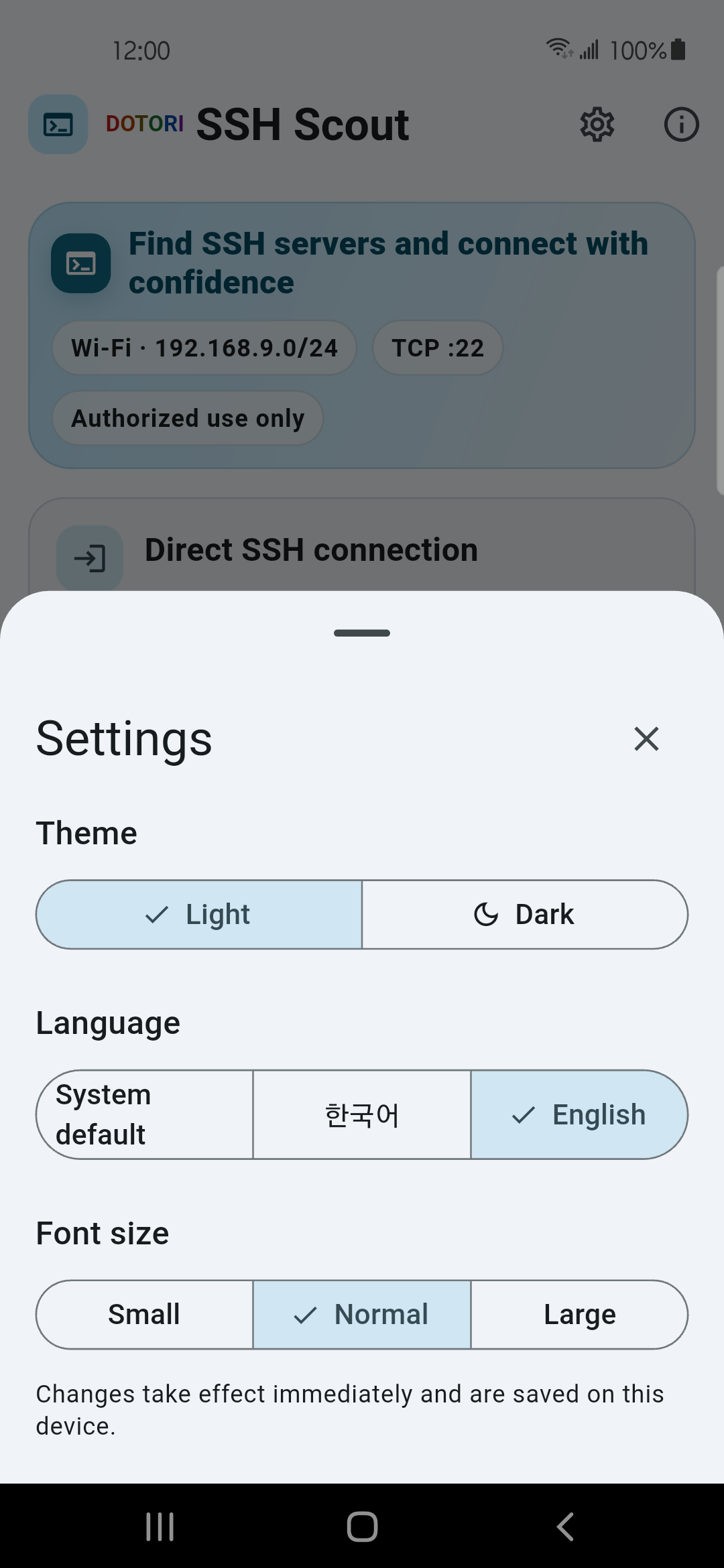
- Choose system, English, or Korean language.
- Change the theme and terminal text size.
- Review saved connections and remove credentials that should no longer remain on the phone.
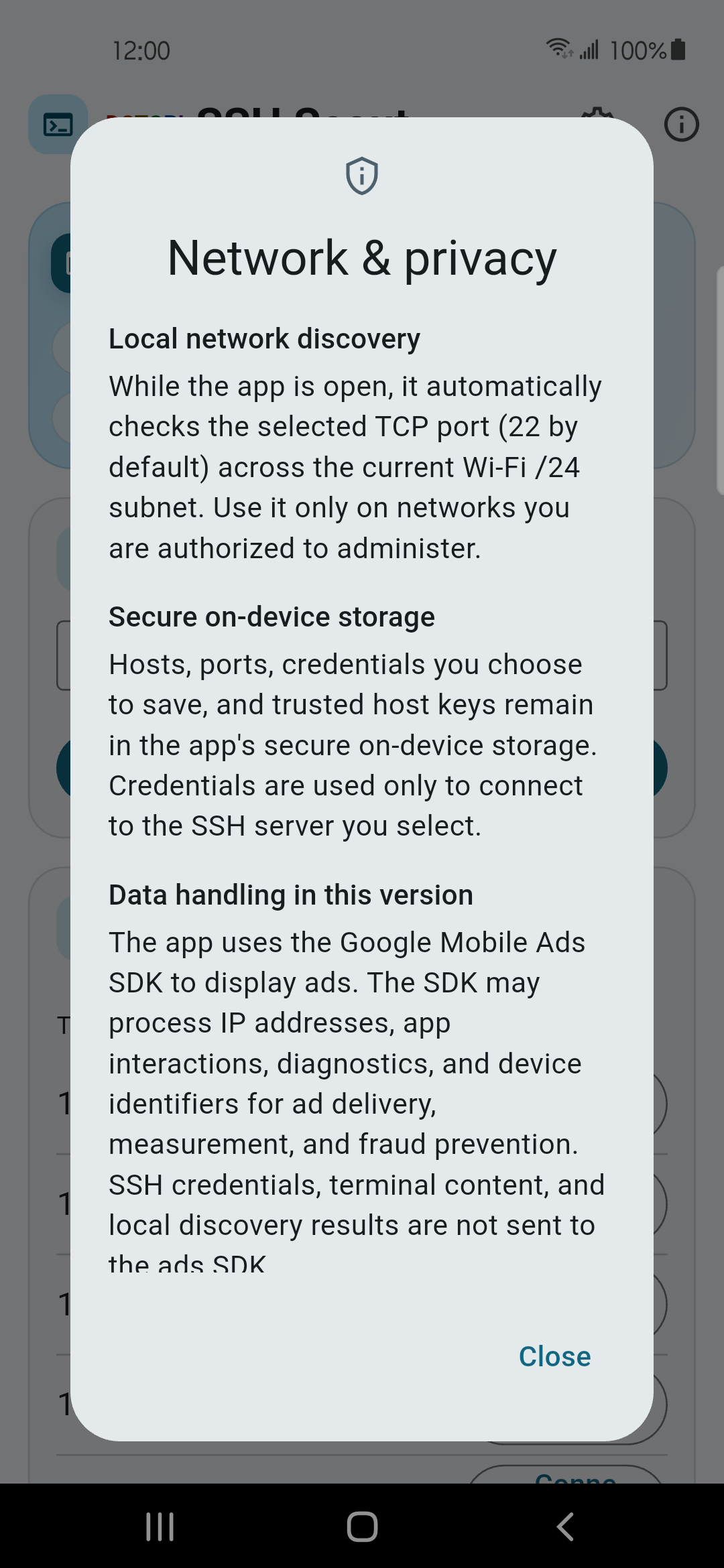
- Open network and privacy information to review local discovery, storage, and authorized-use boundaries.
Troubleshooting
| Symptom | What to check |
|---|---|
| No host is discovered | Confirm the SSH service and port, Wi-Fi reachability, client isolation or VLAN boundaries, and the server firewall. Try direct connection with a known address. |
| Connection refused or timed out | Verify the host and port, then check whether the server listens on that interface and permits the phone's subnet. |
| Authentication fails | Re-enter the username and credential for this server. Discovery does not verify an account. |
| Host key changed | Stop and verify the new fingerprint through a trusted channel. Treat this as a server-identity issue, not a discovery problem. |
| WiFi Scanner handoff opens no session | The handoff fills only host and port. Complete the credential prompt and host-key check inside this app. |
Security and privacy
Credentials and trusted host keys are stored in the app's protected storage on the phone. Credentials are permanent only when you choose to save them and can be deleted per target. Session output, discovered hosts, and credentials are not sent to droidactor or the advertising SDK. See the full privacy policy.