Quick start
Prepare before presenting
Turn on Bluetooth on the phone and PC. Grant the Bluetooth and notification permissions requested by the app. Open the PC's Bluetooth settings.
Start the connection
Press Start connection. For a new PC, make the phone discoverable and pair it from the PC. Confirm the request on both devices, then wait for HID registration and the minimum report check to complete.
Open PowerPoint and test
Bring the PowerPoint window to the foreground. Open the remote, start a test slideshow, and press Next once. Do this before the room fills up so focus or pairing problems are visible early.
Keep the presentation window active
The remote sends keyboard shortcuts to whichever PC application has focus. Return focus to the slideshow if another window was opened.
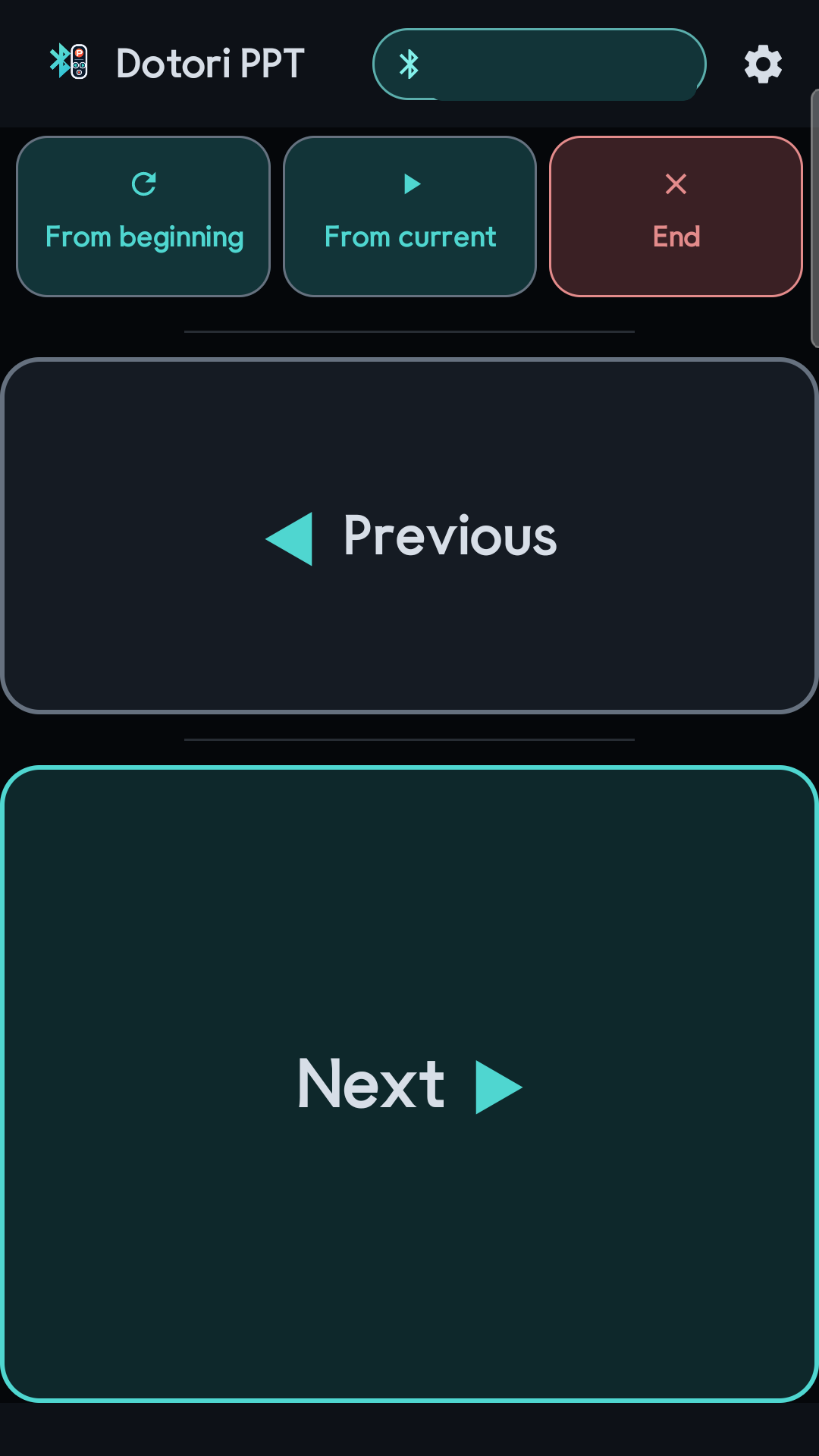
The five controls
| Control | Key sent | PowerPoint result |
|---|---|---|
| Previous | PageUp | Move to the previous slide |
| Next | PageDown | Move to the next slide |
| From beginning | F5, then Home | Open the slideshow at the first slide |
| From current | Shift+F5 | Start from the selected slide |
| End | Escape | Leave the slideshow |
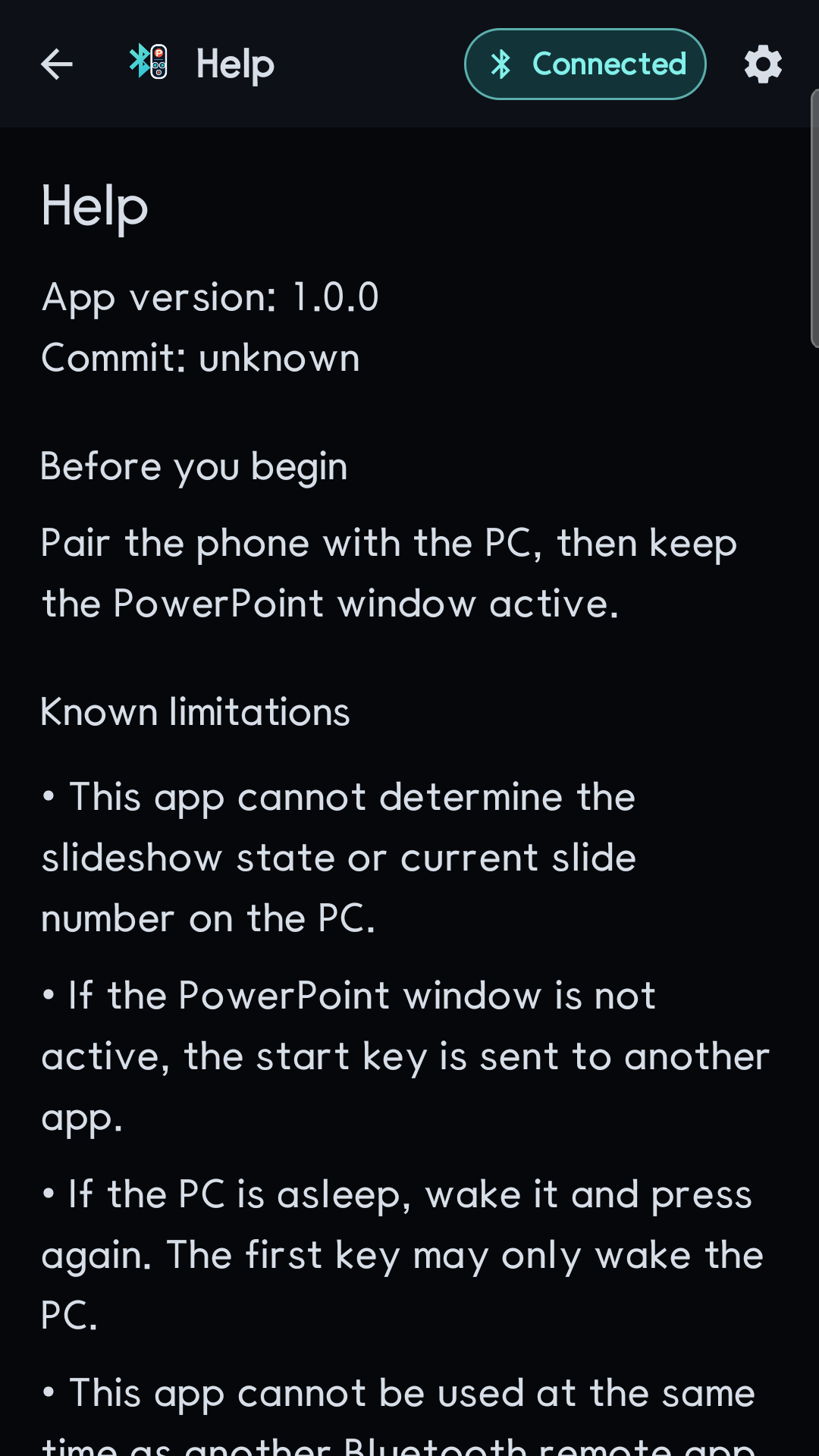
The remote is one-way. It can report that a key was sent, but it cannot read the current slide number or confirm that PowerPoint used the key.
Connection and settings
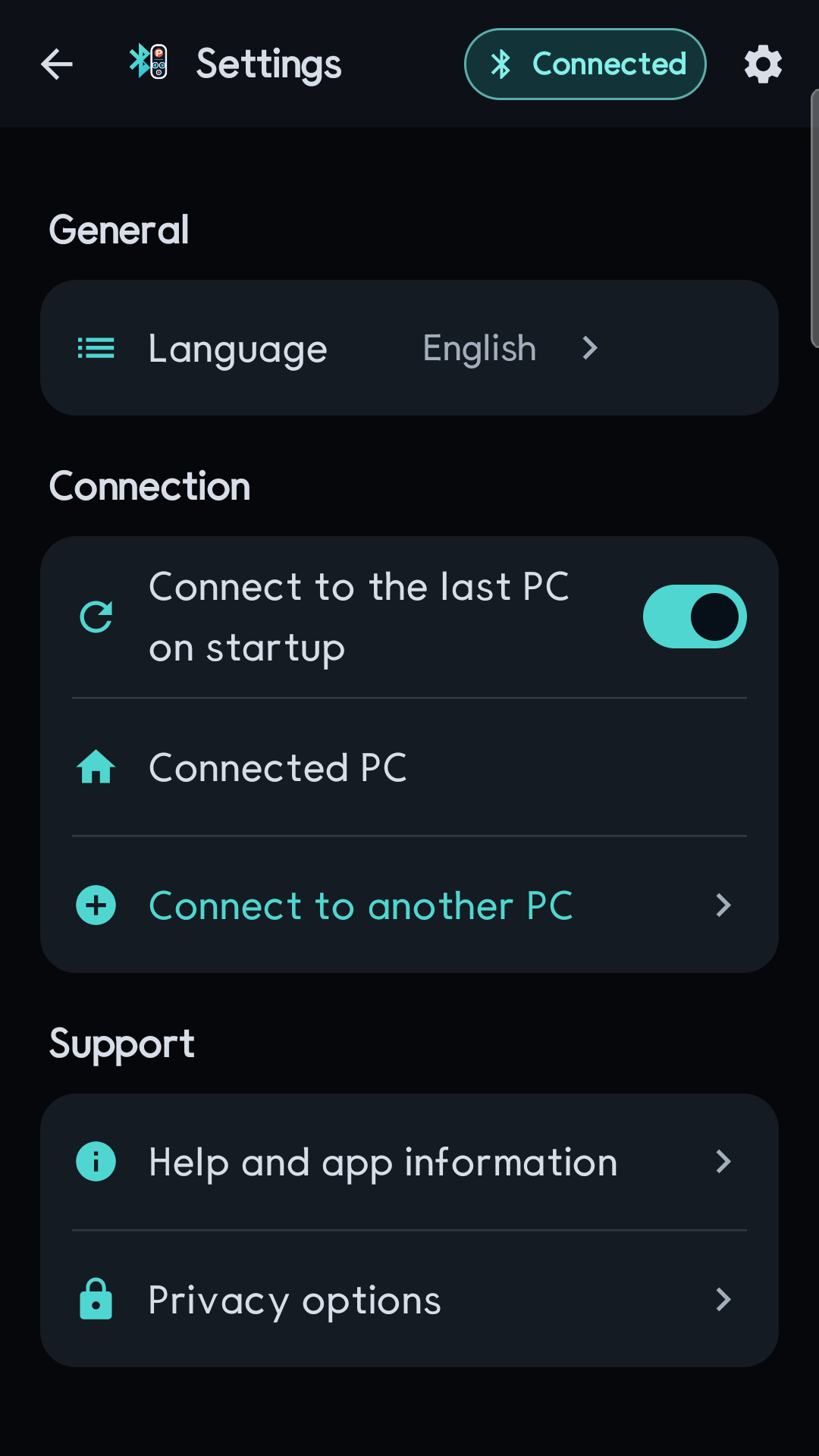
- Connected PC: shows the current host; use Connect to another PC to change it.
- Connect to the last PC on startup: attempts one reconnect when Bluetooth is ready and the last PC remains paired.
- Language: follows the system by default or can be set to English or Korean.
- Help and app information: lists the exact keys and known limits.
Troubleshooting
| Symptom | What to check |
|---|---|
| A button does nothing | Put the PowerPoint slideshow in the foreground. If the PC was asleep, the first key may only wake it; press the action again. |
| The wrong app reacts | The wrong PC window has focus. Activate PowerPoint before sending another command. |
| The phone cannot pair | Grant permissions, enable Bluetooth, make the phone discoverable, and close another Dotori HID remote that may own the session. |
| Start commands differ | From beginning and From current use PowerPoint shortcuts. Another presentation app may use different keys. |
| The connection ends in the background | Open the app and reconnect. Some phone power-saving policies stop a background Bluetooth session. |
Requirements and privacy
- Android 9.0 or newer on a phone with the Bluetooth HID Device profile
- A PC that accepts a standard Bluetooth keyboard
- PowerPoint for the documented start shortcuts
The app sends only the five documented keyboard actions to the paired PC. It cannot read the presentation file, slide content, or current slide. See the full privacy policy.