Quick start
Put the phone and TV on the same local network
Turn the TV on fully and connect the phone to the same router. A TV in deep standby cannot answer discovery.
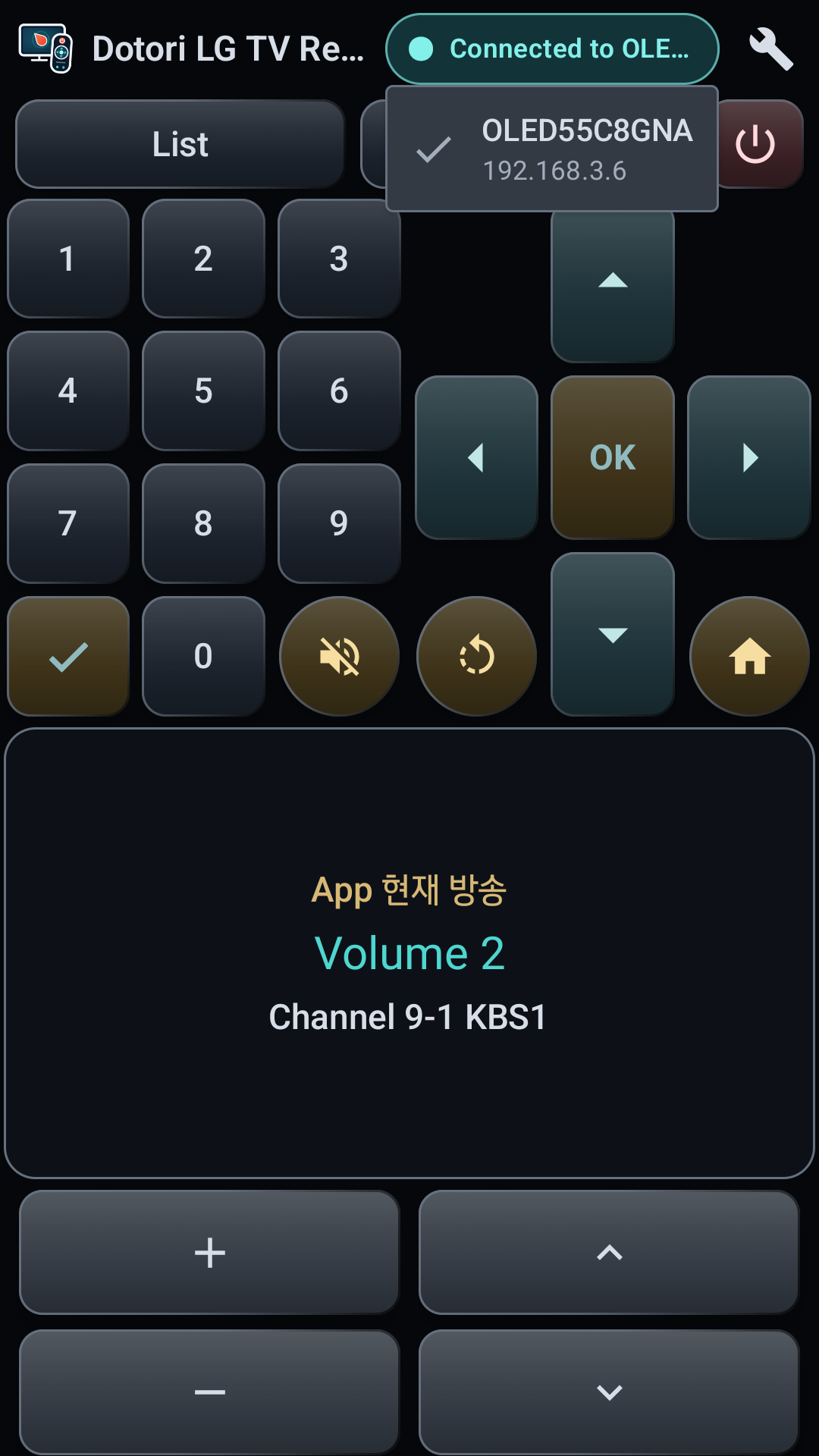
Open TV selection
Tap the wrench key, then choose a discovered TV under TV connection. If the set does not appear, press Search again.
Approve the first connection on the TV
Watch the TV screen and accept its connection prompt. The app saves the client key and TV identity on the phone so later connections normally do not ask again.
Confirm the connected TV
Return to the remote and wait for Connected to …. Test one harmless action such as opening Home or changing volume by one step.
Remote controls
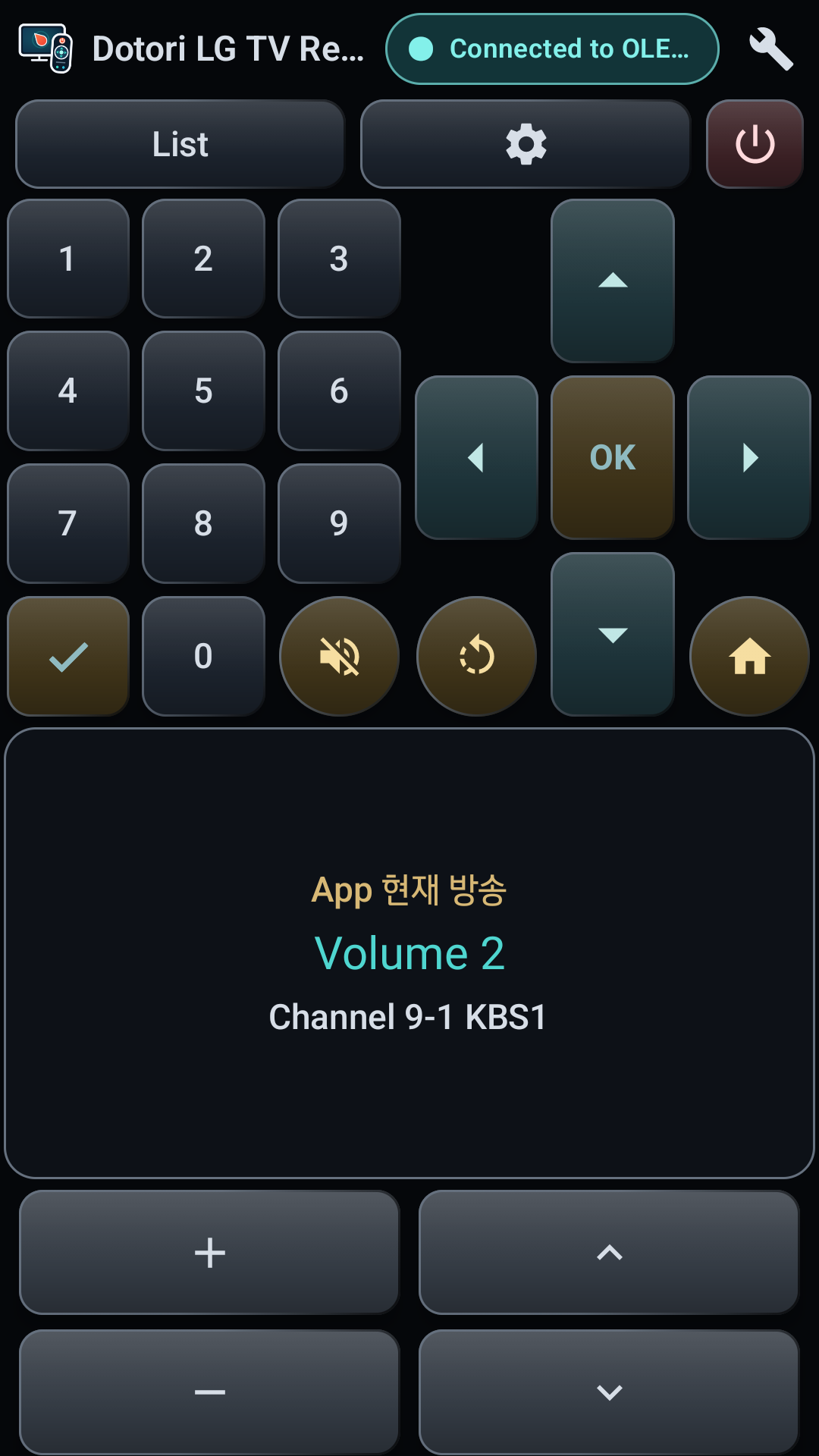
- Trackpad: drag to move the TV cursor, tap once to select, and slide two fingers to scroll.
- Navigation: use the direction pad and OK. The round arrow goes Back and the house opens Home.
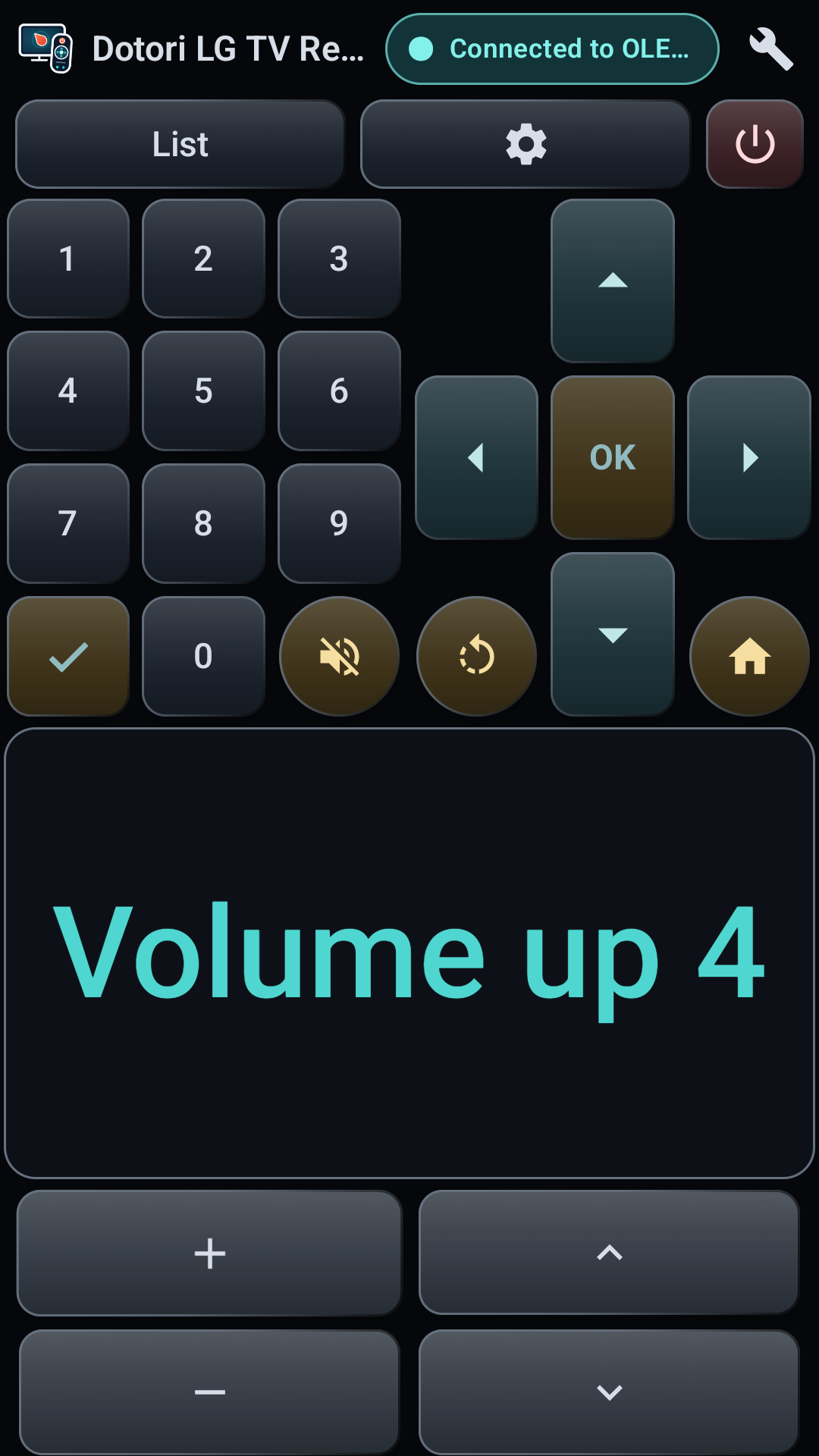
- Volume and channel: tap for one step or hold to repeat. Drag a volume key vertically to move through several levels. The speaker key toggles mute.
- Number pad: enter channel digits and use the check key to confirm.
- TV menus: the list key opens the channel list and the gear opens TV settings on the TV itself.
Power on and off
Turn off
While connected, the power key sends an authenticated command to the TV. The set may remain briefly reachable while entering standby.
Wake from standby
Power-on uses Wake-on-LAN and requires the MAC address recorded while the TV was on and paired. Enable the TV's Mobile TV On setting before turning it off. Waking the measured set took about 15–20 seconds.
An off TV cannot be newly discovered. Pair and save it while it is on. Wired and Wi-Fi interfaces can have different MAC addresses, so use the connection you intend to wake.
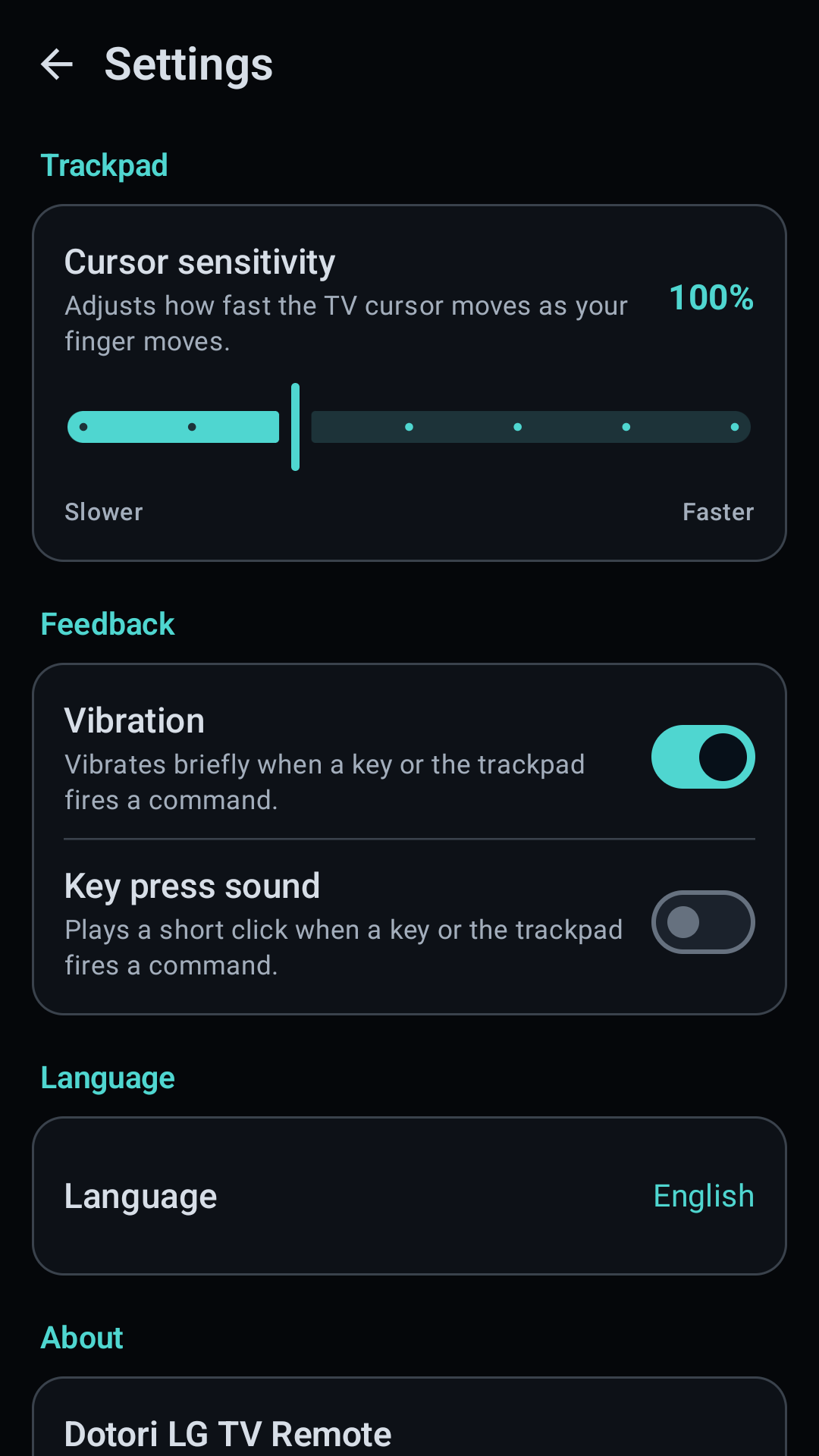
Settings
- TV connection: select a remembered set or search again.
- Cursor sensitivity: adjust how far the TV cursor moves with the finger.
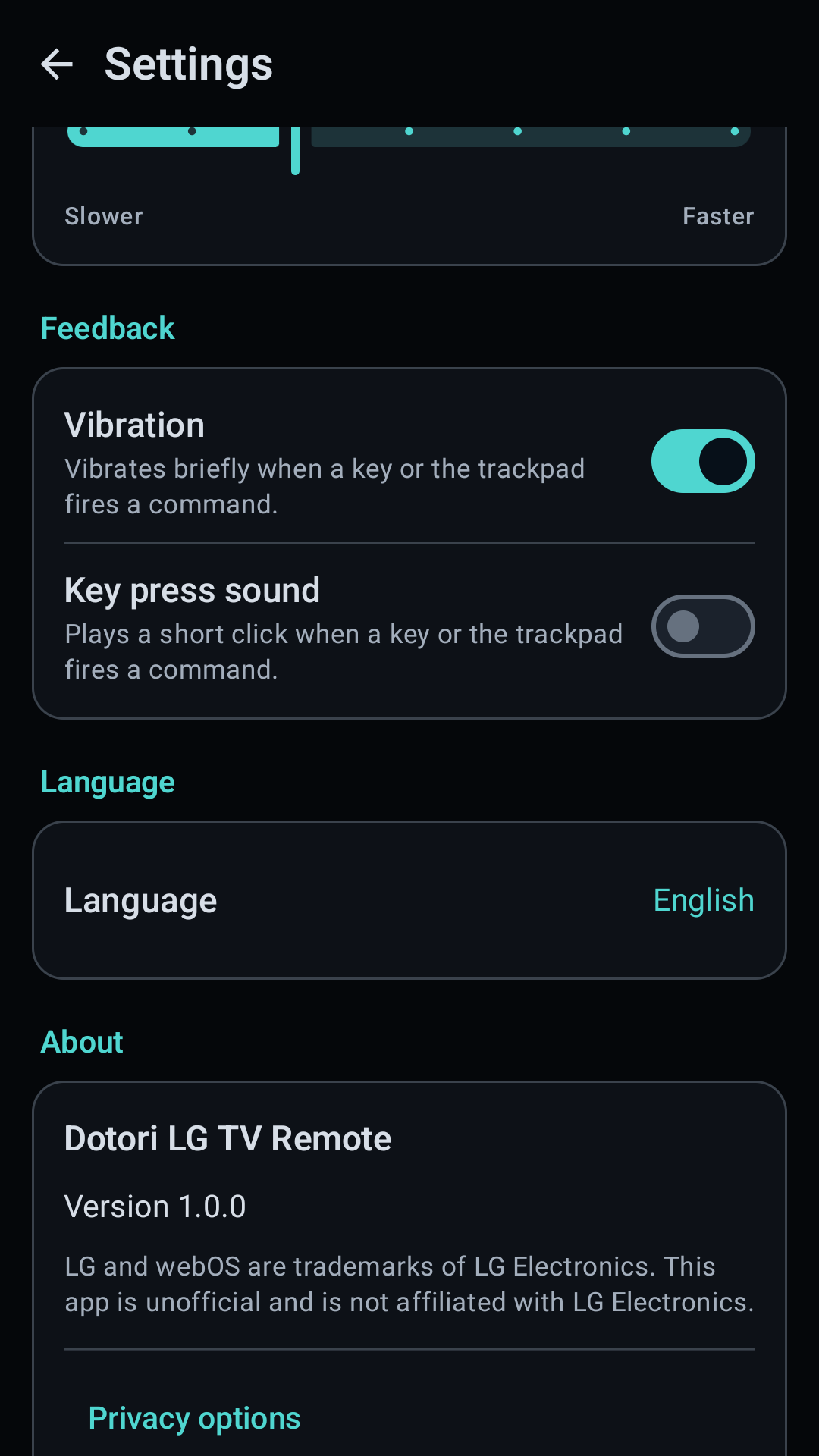
- Feedback: enable vibration and key-press sound.
- Appearance: choose dark or light theme and round or square number keys.
- Language: follow the system or choose English or Korean. Names returned by the TV may still follow the TV's own language.
Troubleshooting
| Symptom | What to check |
|---|---|
| No TV is found | Turn the TV on fully, connect both devices to the same local network, and press Search again. Check router client isolation and multicast filtering. |
| First connection does not finish | Look at the TV and approve the prompt. If it expired, select the TV again and repeat approval. |
| Keys work but the pointer does not | Reconnect the TV so both the main control channel and the separate pointer channel are opened again. |
| The TV will not wake | Confirm it was paired while on, its MAC was saved, Mobile TV On is enabled, and the phone is on a network that can send Wake-on-LAN to the TV. |
| Text cannot be entered | Text input is deliberately not provided because webOS app support is inconsistent. Use the TV app's own supported input method. |
Requirements, limits, and privacy
- Android 8.0 or newer
- An LG webOS TV reachable on the same local network
- No TV-side installation or account
- Measured on an LG OLED C8 with webOS 4.x; other models may differ
Remote commands go directly from the phone to the selected TV. The app stores the TV address, MAC address, reported model, pairing key, and certificate identity on the phone for reconnect and Wake-on-LAN. No location permission is used. See the full privacy policy.
LG and webOS are trademarks of LG Electronics. This app is unofficial and is not affiliated with LG Electronics.