Quick start
Prepare the phone and host
Turn on Bluetooth on both devices. On the phone, grant the Bluetooth and notification permissions requested by the app. On the PC, TV, tablet, or other host, open its Bluetooth device screen.
Choose the profile for a new host
Open Settings and check Default input profile for new devices. Choose Windows Korean 2-set, Windows US, iOS US, or Android TV US to match the receiving device.
Start the connection
Start a new connection in the app. If the host has never been paired, make the phone discoverable when prompted and select it from the host's Bluetooth screen. Confirm the pairing request on both sides.
Wait for input verification
The app prepares HID, connects the host, and sends a minimum report. When verification succeeds, the host is saved in Connected devices and history.
Calibrate the layout
Focus an empty text field on the host. Send the offered
abcor가나다probe and answer whether the result matches exactly. Recalibrate whenever the host keyboard layout changes.
No companion program is required. The receiving device sees the phone as a normal Bluetooth HID keyboard and mouse.
Keyboard input
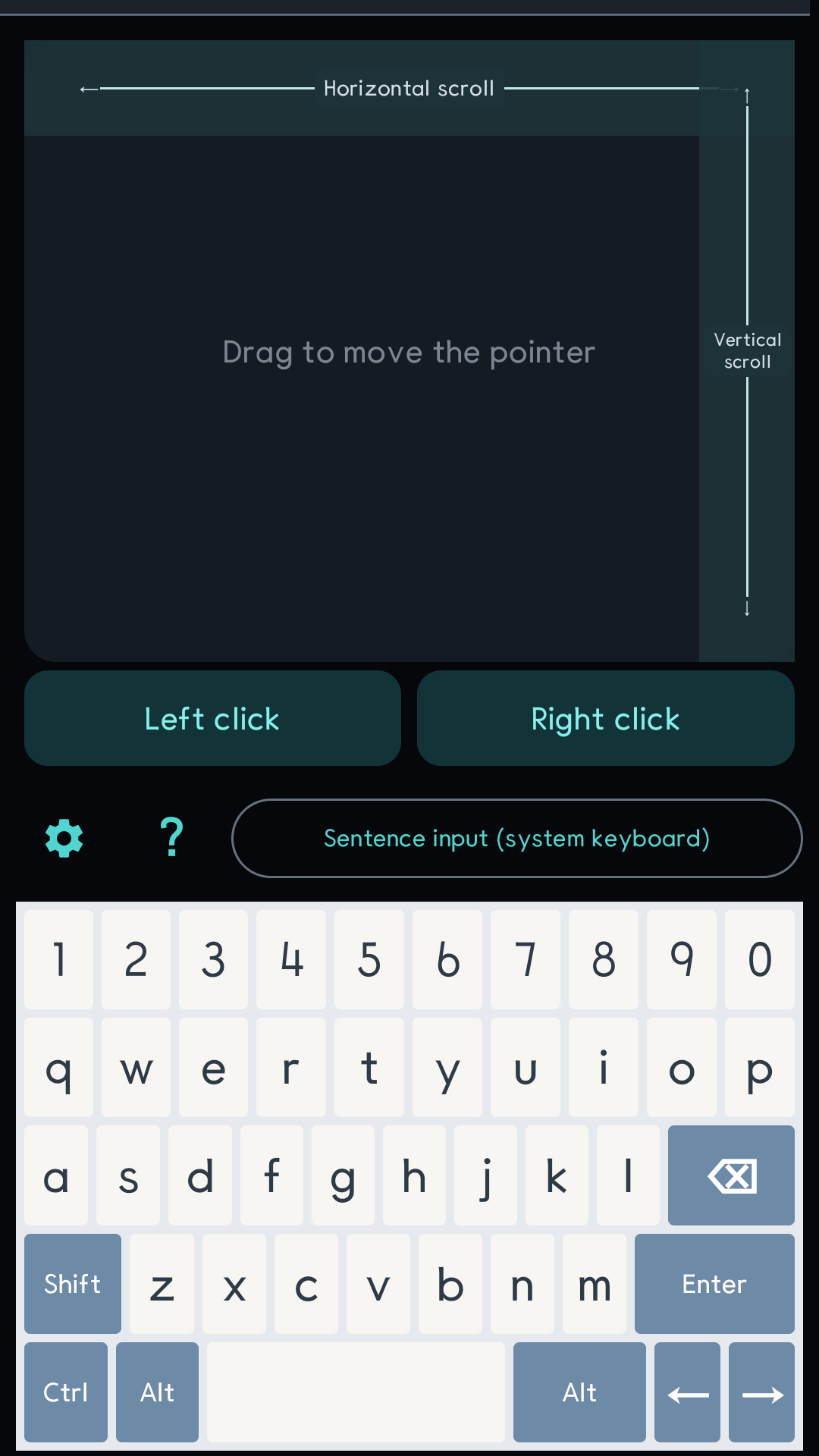
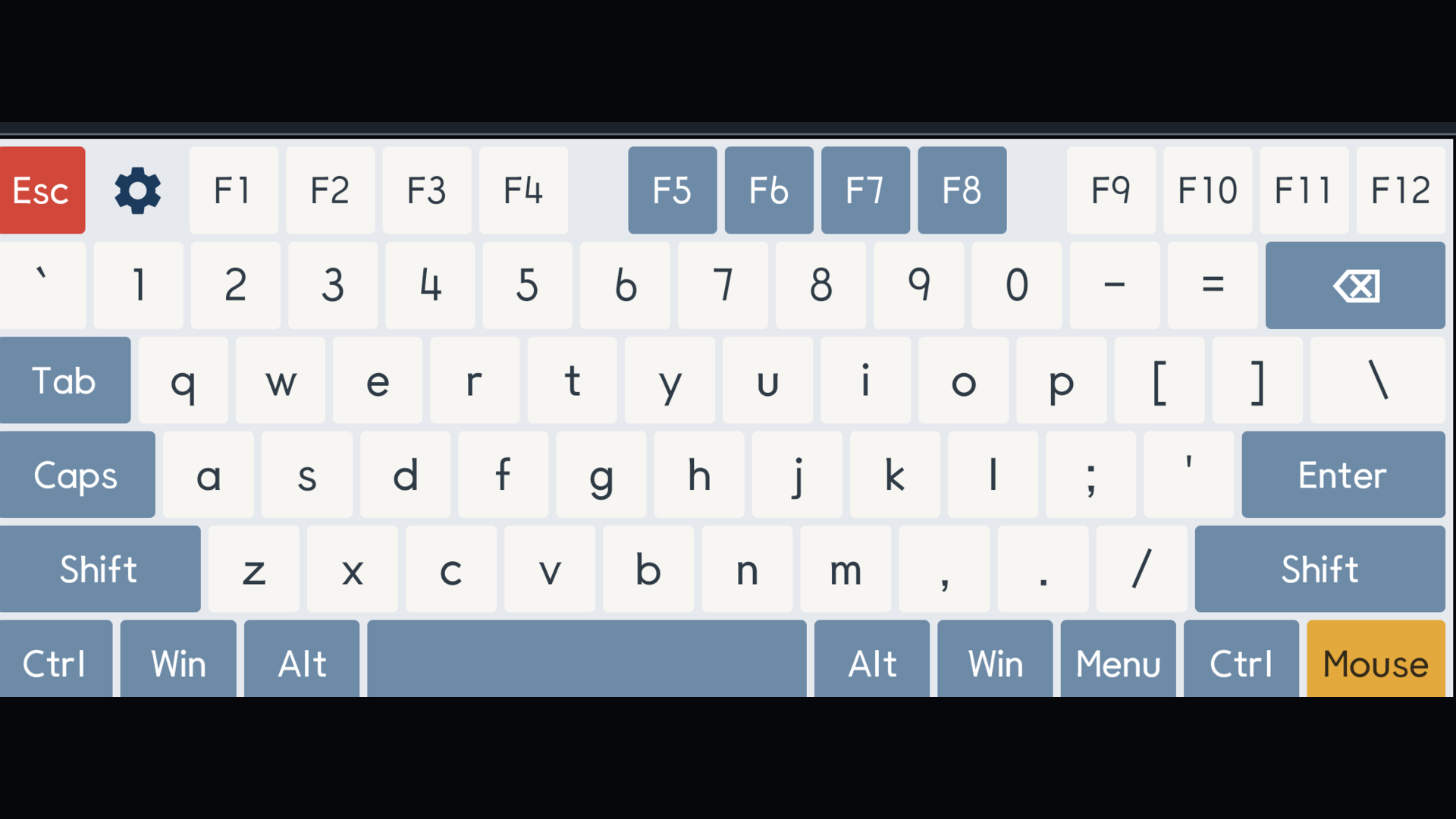
Custom keyboard
Every on-screen key is sent immediately. Select Korean as the keyboard language to enable the Korean/English key. The indicator on the phone cannot read the host's actual IME state; if the two indicators differ, long-press the Korean/English key to realign the display without sending another key.
Sentence input
Use Sentence input (system keyboard) when you want to compose and edit a sentence on the phone first. The buffer is local to the phone. A space or Enter sends the current text, or you can press Send. Use Host ⌫ to send Backspace to the receiving device.
Trackpad
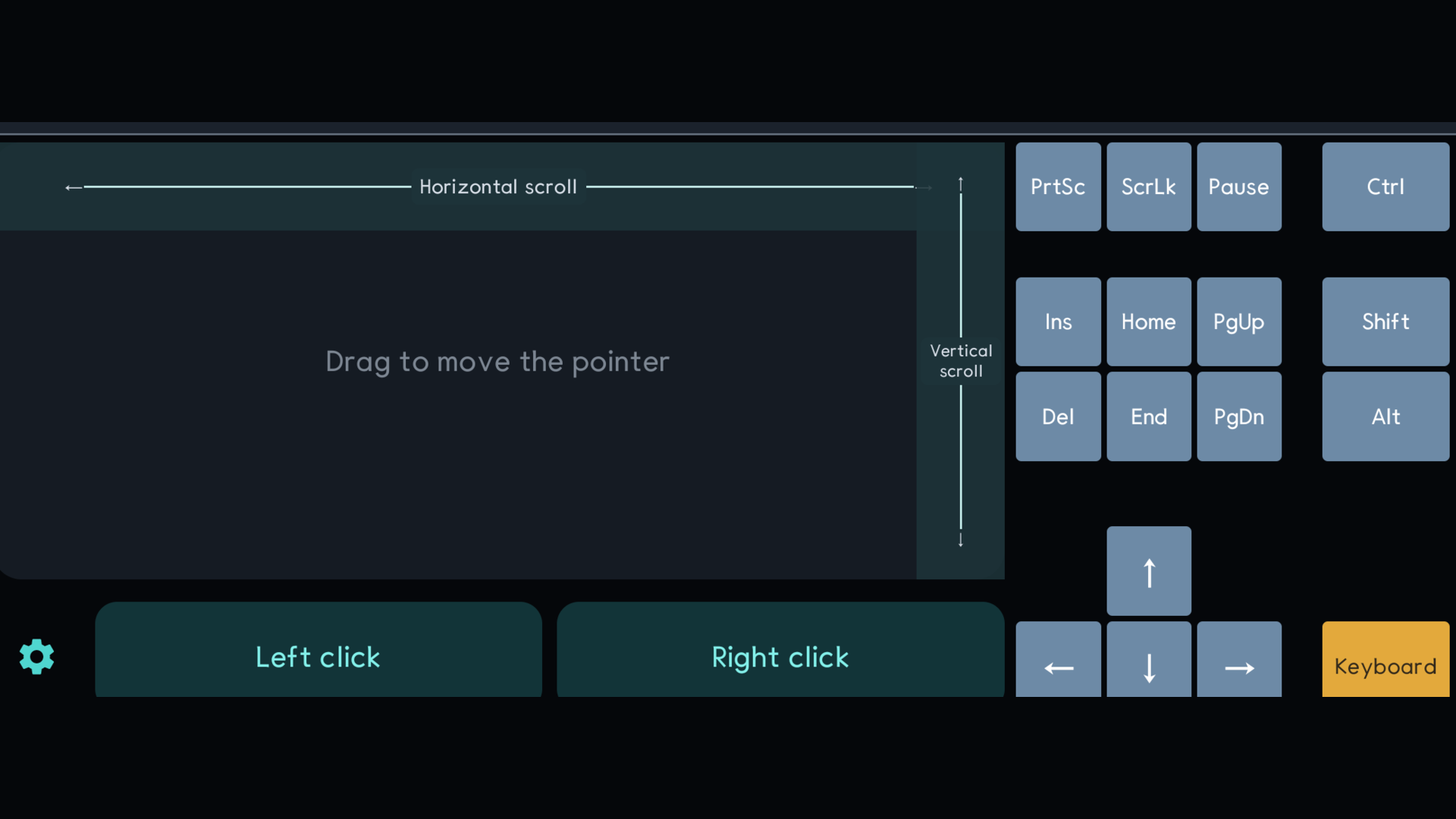
- Drag on the main surface to move the pointer.
- Tap once for a left click and twice for a double-click.
- Use the separate left- and right-click buttons when precise clicking matters.
- Drag or hold the vertical and horizontal scroll controls. Horizontal scrolling depends on the active host application.
- Change pointer speed with Pointer sensitivity.
Settings
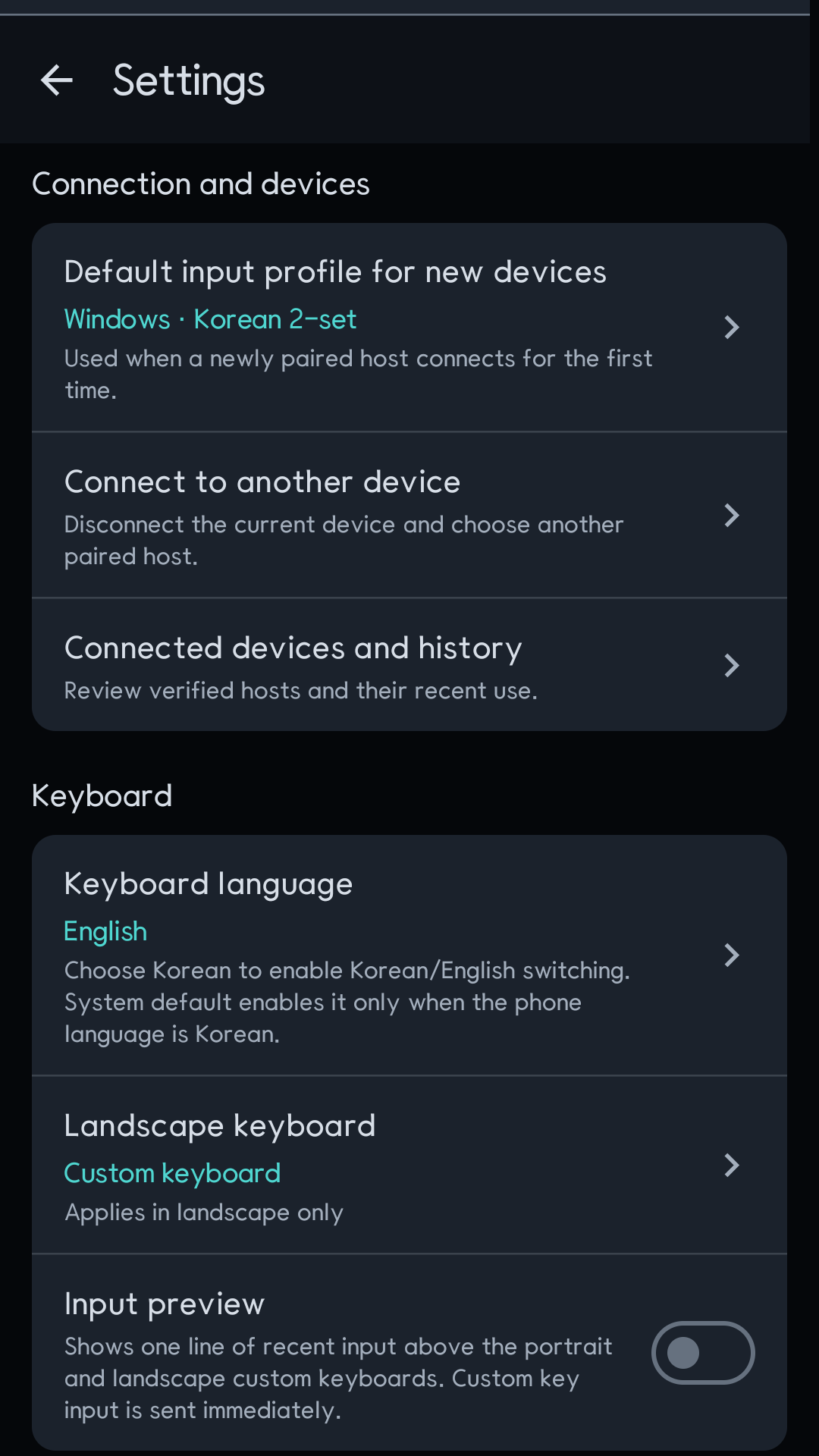
- Permissions: review and request the required Bluetooth and notification permissions.
- Connected devices and history: reconnect to a verified host or review its assigned profile.
- Keyboard language and input profile: select Korean support and the receiving platform.
- Landscape keyboard: choose the custom keyboard or sentence input.
- Input preview and feedback: show recent input and enable vibration or key sounds.
- Compatibility diagnostics: inspect the current Bluetooth HID state and run guided tests.
Troubleshooting
| Symptom | What to check |
|---|---|
| The host cannot find the phone | Grant the requested permissions, turn Bluetooth on, start a new connection, and make the phone discoverable. Close another Dotori HID remote if it currently owns the session. |
gks appears instead of 한 | The connection works, but the host is in English mode. Switch the host IME to Korean and resend the probe. |
| Unexpected Korean characters appear | Choose Korean 2-set on the host and the matching Windows Korean profile in the app, then run Recalibrate. |
| Keys produce nothing | Focus an editable field, check the connection chip, and reconnect. If the session is quarantined, disconnect in the app and open diagnostics before trying again. |
| The pointer or scroll stops | Reconnect the host and retry. Horizontal scroll support is controlled by the active host application. |
Requirements and privacy
- Android 9.0 or newer on a phone that exposes the Bluetooth HID Device profile.
- A host that accepts a standard Bluetooth keyboard or mouse.
- No account, receiver dongle, or host-side software.
Key and pointer reports go only to the paired host. The app does not read the clipboard or retain typed content. See the full privacy policy for stored connection data and diagnostics.