https://play.google.com/store/apps/details?id=com.droidactor.qr
In short. You scan the menu QR code at a restaurant table, and a full-screen ad covers the menu instead. You reach for the close button and land on a sign-up page for a paid add-on service. Dotori QR & Barcode Scanner is a QR code scanner and barcode reader for Android. You choose what happens next on the result screen. No full-screen ad or subscription prompt appears after a scan. Before a web link opens, you see its domain and how the address looks.
Dotori QR & Barcode ScannerScan codes and check links before opening
The app is built around five core features. It reads QR codes and 1D and 2D barcodes on the phone from the camera, photos or shared images. Links never open on their own; you see the domain, full address and address notes first. Only the code inside the guide box is read, so a nearby code is not picked up first. The result screen offers fitting actions, such as adding Wi-Fi, saving a contact or a web search. Up to 500 scans stay on the phone, with search and deletion.
No full-screen ads or automatic actions after a scan
When an ad fills the screen as you scan, you must find the close button before you see the result. If the close mark is small or moves, it is easy to tap an ad or a paid carrier service by mistake.
Dotori QR & Barcode Scanner shows no full-screen ad or upgrade prompt before or after a scan. Every feature is free, with no subscription or in-app purchase. The only ad is one banner at the top of the screen. It sits apart from the buttons below, so you are unlikely to hit it while you scan or tap a result.
Reading a code does not open the browser or save a Wi-Fi network or contact on its own. Whatever the code holds, the app opens the result screen first. The next step runs only after you read the content and tap a button.
See the domain and notes before you open a link
You cannot tell where a QR code on a flyer, sign or parking machine leads just by looking. When this QR code reader scans a web link, it shows the domain in large type under Goes to. The full address appears on the line below.
If the address has a feature worth a second look, the About this address box lists it.
- A short link service, which hides the final address until you open it
- A plain connection without encryption (
http) - A numeric IP address instead of a domain name
- Non-Latin letters or an
xn--form (international characters) - User info placed before an
@sign in the address - A
.apklink that downloads an Android app install file
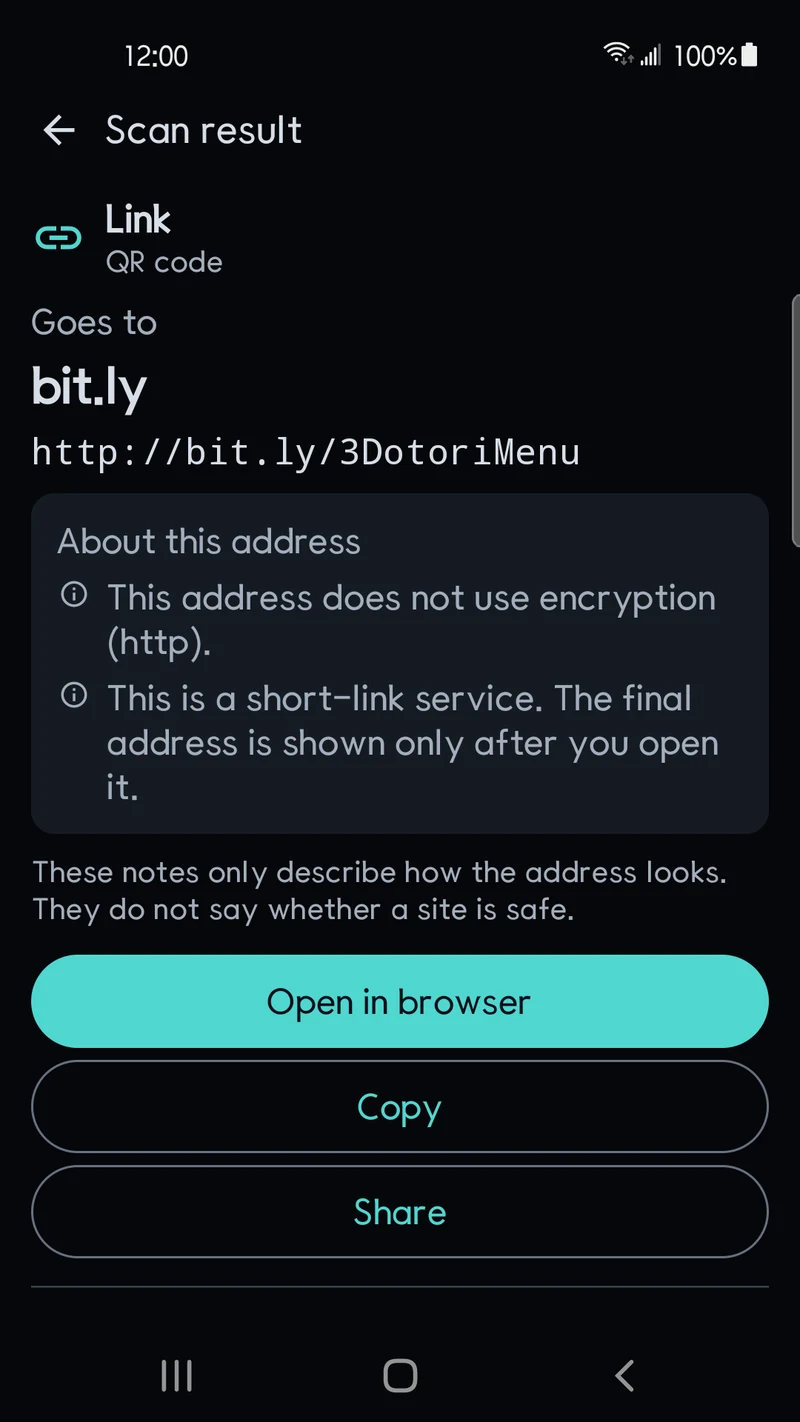
For example, scan a code like http://bit.ly/... and the app shows the bit.ly domain and the full address first. Below them, it notes that the address is unencrypted and that it is a short link. These notes only describe how the address looks; they do not judge whether a site is safe. Once you have checked them, pick Open in browser, Copy, Share or Show original text.
Read QR codes in chats and screenshots from the Share menu
Sometimes the QR code is already on your own screen, such as an invitation, a ticket or a coupon. You do not have to show it on another phone or a PC monitor and scan it again. There are two ways to scan a QR code from an image on your phone.
First, tap Photo at the bottom of the first screen and pick a photo or screenshot. Second, while you view an image in a chat app, your gallery or a browser, open the Share menu. Then send the image to Dotori QR & Barcode Scanner.
With the Share menu, you skip saving a chat's QR image to your album and deleting it later. The app searches the whole image for codes and still reads them if the photo is rotated. The image is used only to read the code and is not stored in the app.
Read only the code inside the guide box, even in the dark
Table stickers and event posters often print several QR codes close together. One is for ordering, one for a review event and one for social media. If the camera grabs any code in view, the code next to your target keeps getting scanned.
The app reads only the codes inside the guide box at the center of the camera view. Codes outside the box are ignored, so with this QR scanner you just fit the one you want inside it. If small codes sit so close that two or more fit in the box, you pick the one to open on screen.
In a dark room or garage at night, tap Light on at the bottom to turn on the flashlight. For a distant or tiny code, pinch the preview with two fingers to zoom in. If the focus is soft, tap the code on screen to focus there.
Actions that fit each code, from Wi-Fi to product barcodes
The items and buttons on the result screen change with what the code contains. As a barcode scanner, it reads the 2D codes QR code, Aztec, Data Matrix and PDF417. 1D formats are EAN-13, EAN-8, UPC-A, UPC-E, Code 128, Code 39, Code 93, Codabar and ITF.
| Code type | What the result screen shows | Actions you can run |
|---|---|---|
| Website link | Domain, full address, address notes | Open in browser, Copy, Share, Show original text |
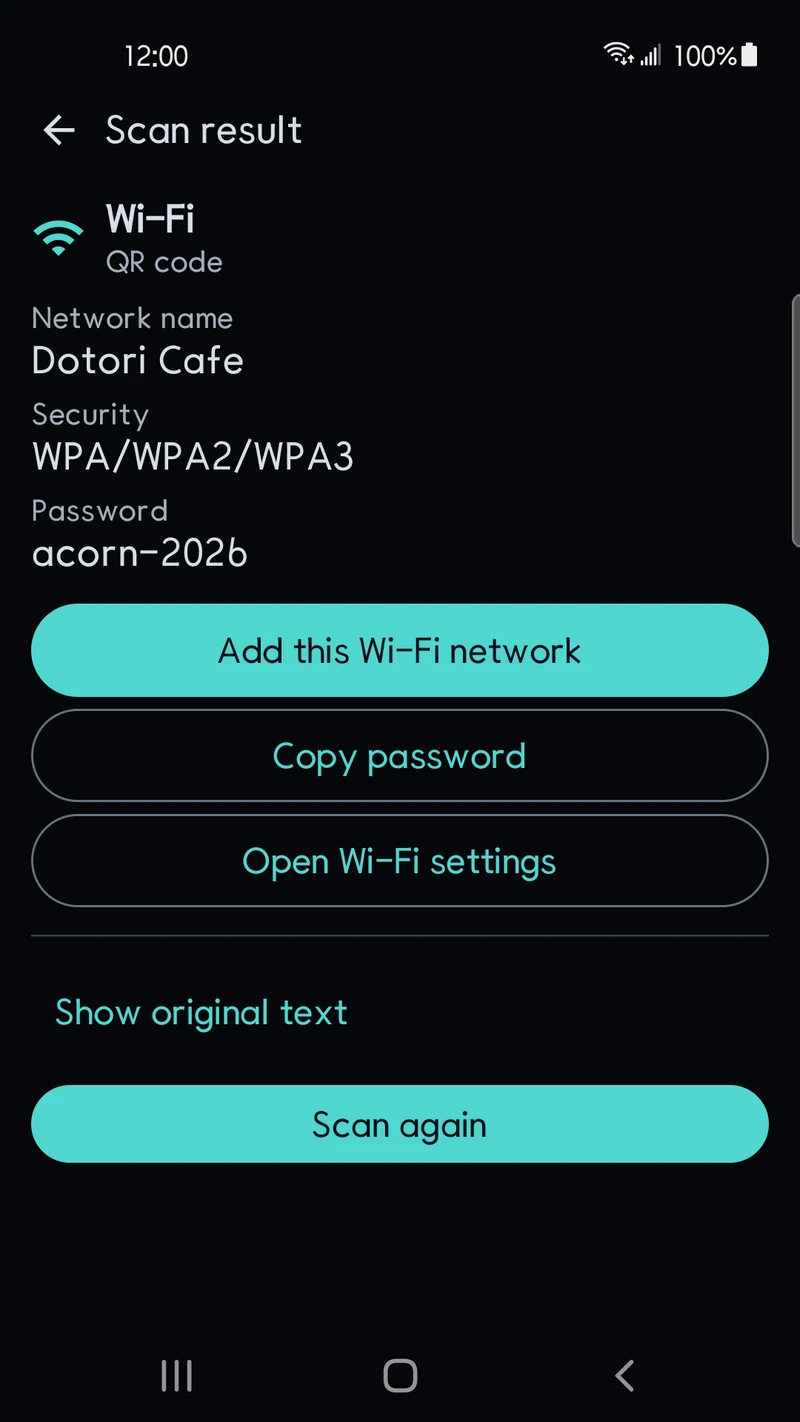
| Wi-Fi details | Network name (SSID), security type, password | Add this Wi-Fi network, Copy password, Open Wi-Fi settings |
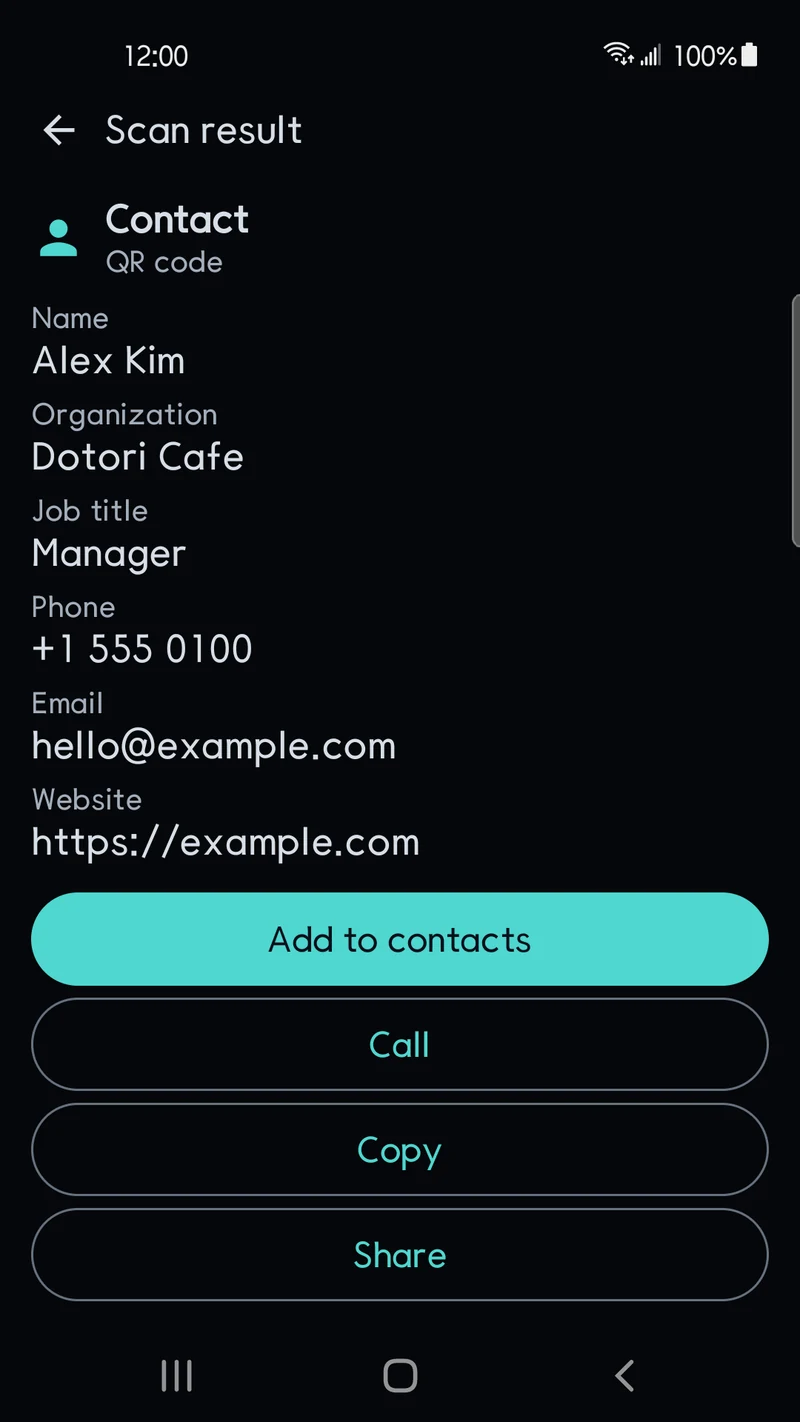
| Contact (vCard and others) | Name, company, job title, phone, email, website | Add to contacts, Call, Copy, Share |
| Event, phone, text, email, location | Event title with start and end times, number or address, coordinates | Add to calendar, open the call, text or email screen, Open in a map app |
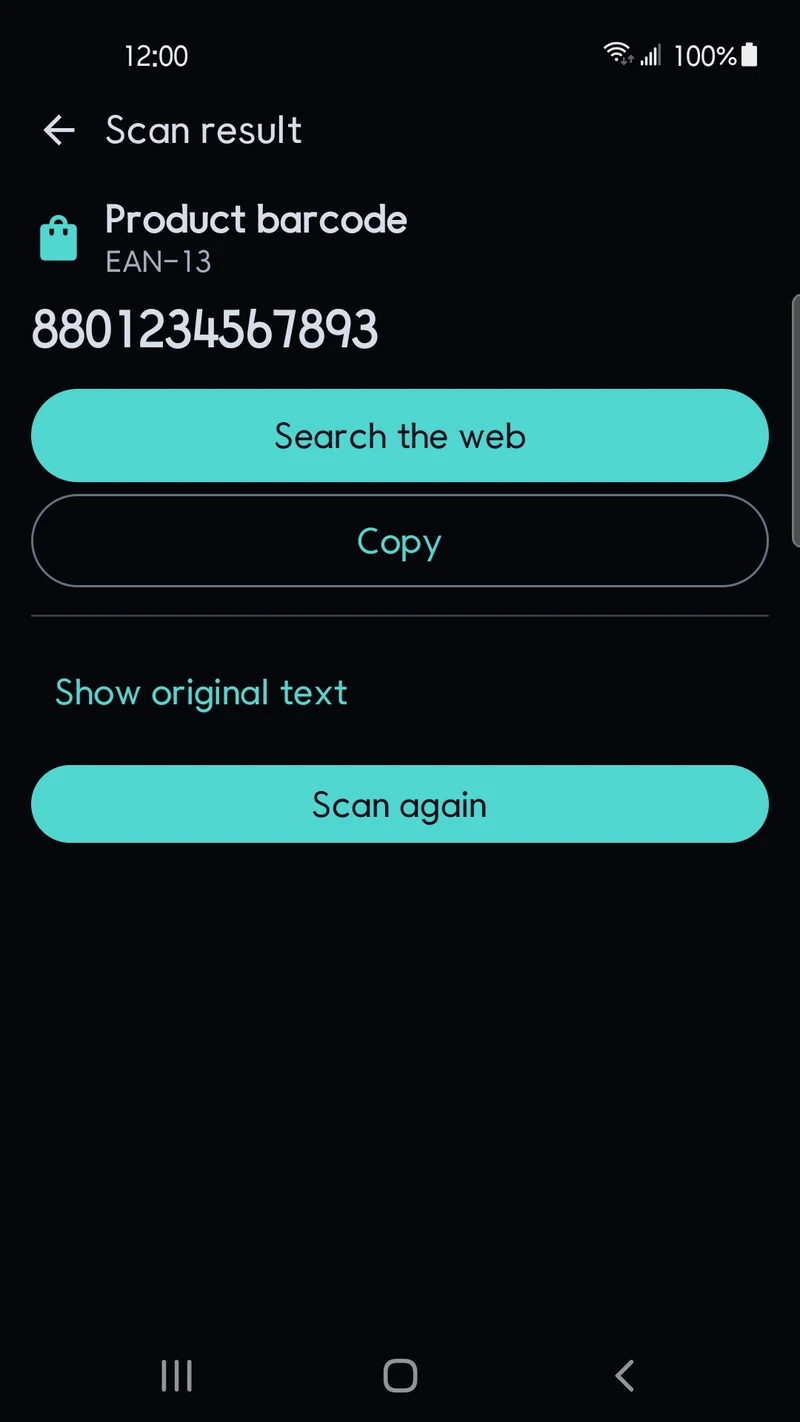
| Product barcode (EAN-13 and others) | Barcode format and number | Search the web, Copy, Show original text |
Scan a Wi-Fi QR code at a café or office to see the network name, security type and password. On Android 11 or later, Add this Wi-Fi network opens the system's Wi-Fi confirmation dialog. On older versions, or to enter details by hand, use Copy password and Open Wi-Fi settings.
A contact QR code from a business card or booth shows the name, company, title, phone and more. Add to contacts and, for events, Add to calendar need no contacts or calendar permission. The app hands the values to Android's own edit screen. You can check and correct them once more before you save.
Aim at an EAN-13 or UPC product barcode on a snack or drink to read its format and number. Tap Search the web to open browser search results for that number. If you only need the number, tap Copy to put it on the clipboard.
Only the camera permission, with scan history kept on your phone
For scanning, the only device permission the app asks for is the camera. It does not ask for location, contacts, calendar, full storage or microphone access. Without the camera permission, you can still read codes in gallery photos or shared images. Codes are decoded on the phone without an internet connection. Camera frames and photos are not sent to any server.
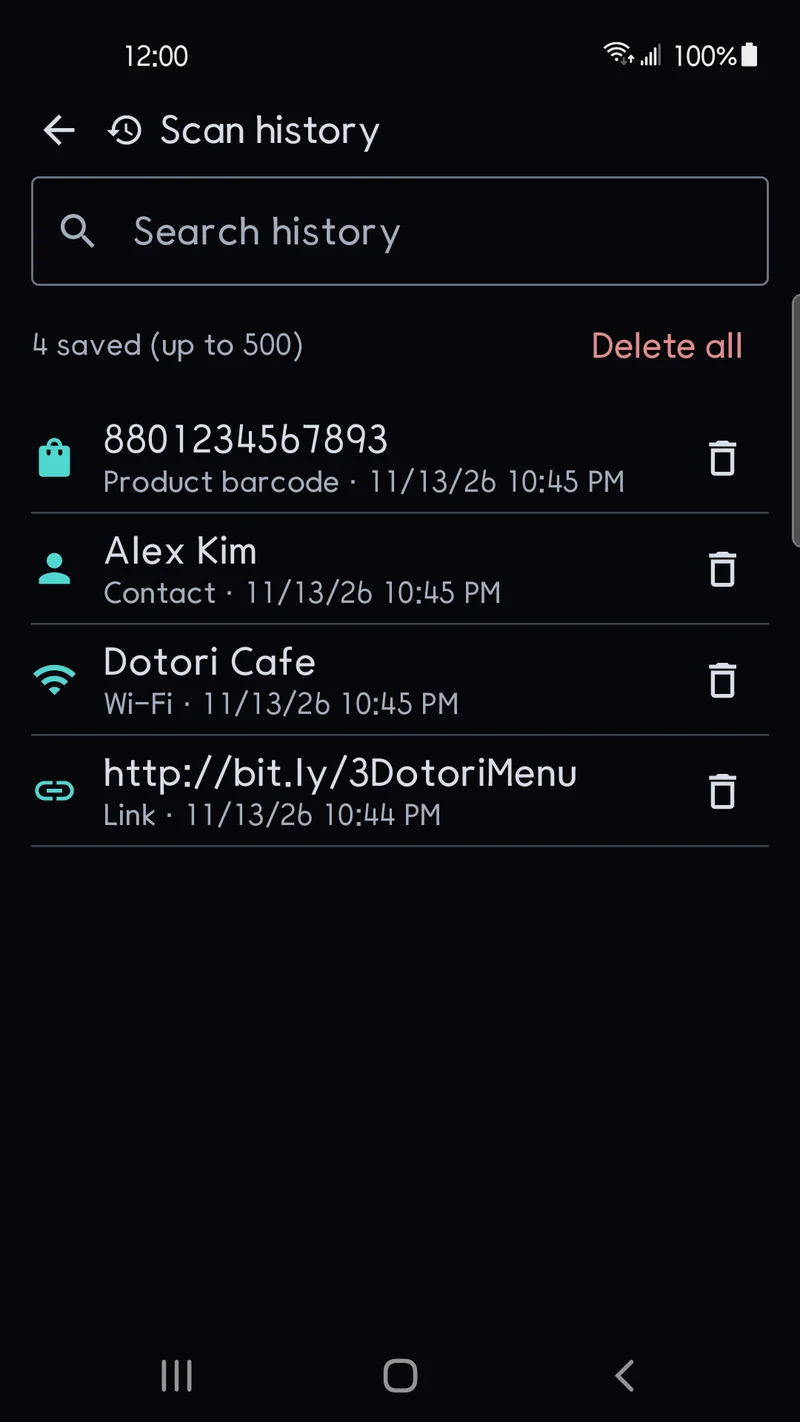
Scanned codes stay in the app's private storage on this phone, newest first, up to 500. To find an earlier scan, search Scan history for a domain, name or barcode number. Remove what you do not need with the trash icon on each row or with Delete all. If you do not want a scan history at all, turn off Save scan history in Settings. Saved history is left out of Android backups and device transfers.
The top banner ad, the ad privacy consent and Google Play update checks can use the network. The app supports English and Korean, light and dark themes and a screen orientation setting. It runs on Android 8.0 or later. Find more features and the privacy details on the Dotori QR & Barcode Scanner product page.
Get Dotori QR & Barcode Scanner on Google Play and check the address before you open a link.
Dotori QR & Barcode Scanner reads QR codes and barcodes from the camera and shared images, and shows you the address before you open a link. More about Dotori QR & Barcode Scanner