
https://play.google.com/store/apps/details?id=com.droidactor.light
In short. You check a drip under the car with your phone's flashlight, then open the camera app for a photo. The light goes out, and the screen shows a black floor. The flash only fires when you press the shutter, so you cannot light the spot while you frame it.

Dotori Flashlight CameraKeep the flashlight on while you take photos

To photograph a dark spot, you need a camera that keeps the light on. Dotori Flashlight Camera is a flashlight app with its own camera screen. It opens the camera with the flashlight still on. Pipes under the sink, numbers on a meter, a key under the sofa: you keep them lit while you shoot.
On top of the big on/off button, the app adds four things. First, the "Take photos with the light on" screen lets you tap to focus and pinch to zoom. Second, on Android 13 or later, supported devices get a slider for LED flashlight brightness. Third, an auto-off timer turns the light off after the time you choose. Fourth, a quick settings tile turns the light on and off without opening the app. Every feature is free, with no subscription or in-app purchase.
The camera screen opens with the light still on
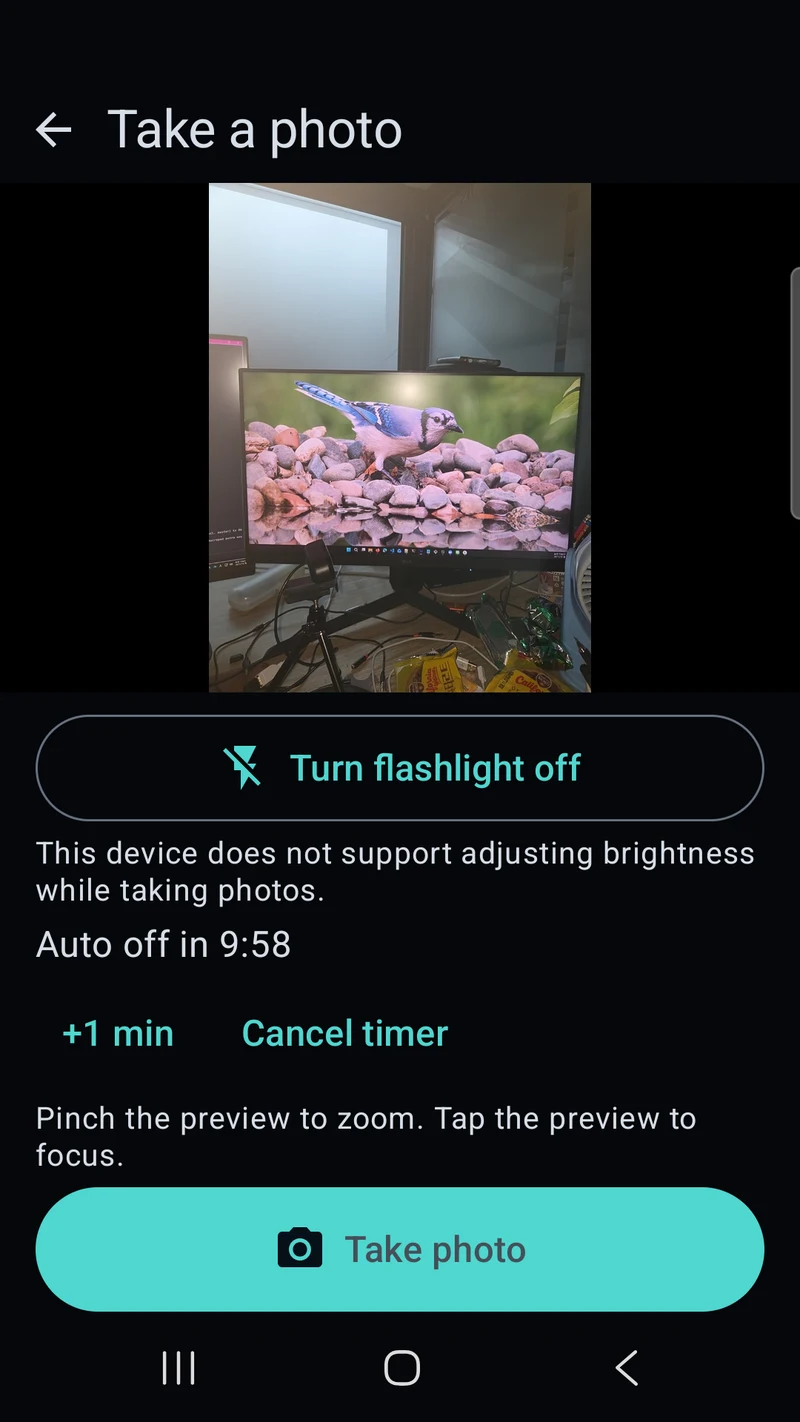
Many camera apps turn the torch light off when they open. This app has its own camera screen instead. Tap "Take photos with the light on," and the preview opens with the flashlight still on. A camera flash fires for an instant, but this light stays on. You can watch the screen while you change the angle and frame the shot. The first time, allow camera access once.
Here is how to photograph a dark spot.
- On the flashlight screen, tap "Take photos with the light on".
- If the light is off, tap "Turn flashlight on" on the camera screen.
- Hold the phone near the spot and tap the preview where you want to focus.
- Pinch out to zoom in on small print or something far away.
- Tap "Take photo", then open the latest photo and share it right away.
Photos are saved to Pictures/DotoriLight on this phone. This is a flashlight with camera in one app, so the timer keeps counting on the camera screen too. The camera screen shows the time left, with "+1 min" and "Cancel timer" buttons. You can add time without leaving the shot. The camera screen has no ads.
Close the camera screen, and the light comes back on if it was on and the timer has not ended. The light may go dark for a moment while the screens switch. This flashlight camera takes still photos with the rear camera only. It does not record video.
Pick a brightness step with the slider
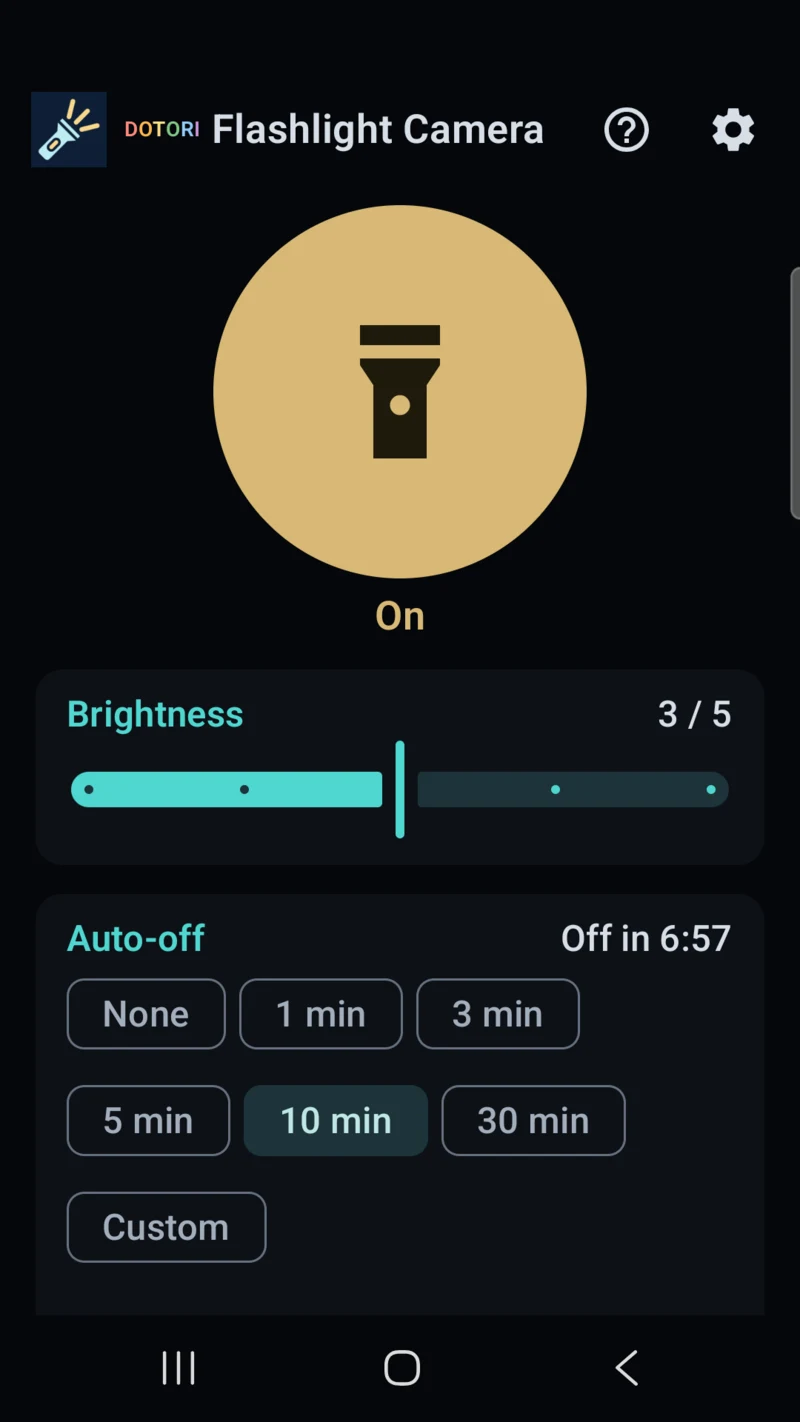
On Android 13 or later, devices that report brightness steps show a brightness slider. The screen above is set to step 3 of 5. The light first turns on at the device's brightest step. If a nearby paper or the glass of a meter reflects too much, move it down a step. Flashlight brightness only changes within what the device's LED can produce.
Devices without brightness steps turn on at one fixed brightness, and the app says why. It does not fake dimming by flickering the light. The camera screen also shows a brightness slider on supported devices with Android 15 or later. Other devices show the notice in the first screenshot instead. It reads "This device does not support adjusting brightness while taking photos."
An auto-off timer turns the light off if you forget
Pick a time in the Auto-off section of the flashlight screen. The light turns off when the time is up.
| Choice | What it does |
|---|---|
| None | Stays on until you turn it off |
| 1, 3, 5, 10 or 30 min | Turns off when the time is up |
| Custom | Any time from 1 to 60 minutes |
| +1 min | Adds one minute to the time left |
| Cancel timer | Clears the countdown and keeps the light on |
The countdown starts when the light turns on. If the light is already on, it starts from the moment you choose. With the screen off, the notification shows that the light is on and the time left. Its Turn off and +1 min buttons work without opening the app. Turning the light off clears the countdown, but your choice stays for next time.
A flashlight timer helps during a power cut, when you leave the light on by the bed. It also helps inside a tent at a campsite while you do something else. Set it to 10 minutes, and if you forget the light, the timer turns it off.
A quick settings tile turns it on without opening the app
The quick settings tile goes in the panel you pull down from the top of the screen. Open quick settings and tap the edit (pencil) button. Then drag the "Dotori Flashlight Camera" tile into your tiles. Tap the tile to turn the light on or off. It uses the brightness and auto-off time you set in the app.
If you want light the moment the app opens, turn on "Turn on when the app opens" in Settings. It is off by default, so the light does not switch on every time you open the app. The help (?) screen lists every hidden control. That includes pinch to zoom and tap to focus on the camera screen.
Check permissions, ads and supported phones first
The flashlight, brightness and timer need no permission. Camera access is requested only when you open the camera screen. The notification permission shows the light's status and the time left. The flashlight still works if you decline notifications. On Android 9 and earlier, the app asks for storage access to save photos.
Photos and settings stay on this phone. There is no account, server or cloud sync, and sharing goes only to the app you choose. Advertising, ad consent and Play update checks may use the network.
The only ad is one banner at the top of each screen except the camera screen. There are no full-screen ads. You can reopen the advertising privacy options in Settings. The shutter sound can be turned off in Settings. On Android 13 or later, the setting is locked on devices that report the sound as required.
The app needs Android 8.0 or later and a phone with a camera flash. It cannot be installed on devices without a flash. It has no screen light mode that turns the display white. The app comes in English and Korean, with light and dark themes. See the Dotori Flashlight Camera product page for the full feature list and privacy details.
Wrap-up
Dotori Flashlight Camera keeps your phone's flashlight on while you take photos. On supported devices you choose the brightness step, and the timer and tile save you steps. The camera screen has no ads, and your photos stay on your phone.
Install the app from the link at the top and tap "Take photos with the light on" first.
Dotori Flashlight Camera lets you take photos with the flashlight on and choose when it turns off. More about Dotori Flashlight Camera