Quick start
Prepare Bluetooth
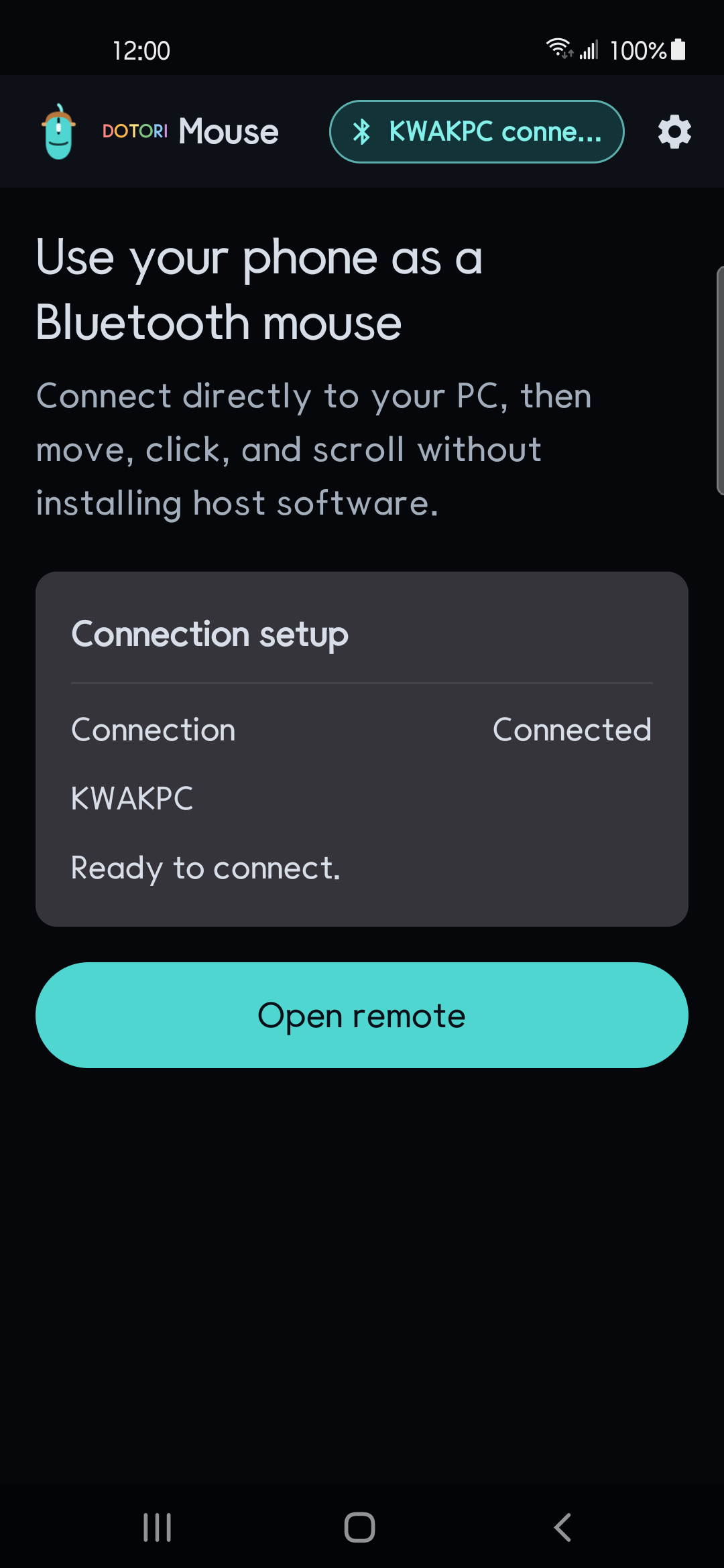
Turn on Bluetooth on the phone and PC. Grant the Bluetooth and notification permissions requested by the app.
Start the connection
Press Start connection. If this is a new PC, make the phone discoverable and pair it from the PC's Bluetooth screen. Confirm both pairing prompts.
Wait until the app is ready
The connection screen checks HID registration, pairing, connection, and a minimum report. A successful PC is remembered for later reconnects.
Open the remote
When the Home screen shows Connected, press Open remote. Move the pointer once and test a click before relying on the connection.
Mouse controls
- Move: drag one finger across the main trackpad surface.
- Click: tap once for a left click or twice for a double-click.
- Buttons: use the separate Left, Middle, and Right controls for explicit button input.
- Scroll: drag the vertical or horizontal scroll area. Support for horizontal scrolling depends on the active PC application.
- Speed: choose Low, Normal, or High sensitivity.
The phone sends movement, not screen coordinates. Bluetooth HID reports relative movement, so the app cannot see or correct the pointer position displayed on the PC.
Settings
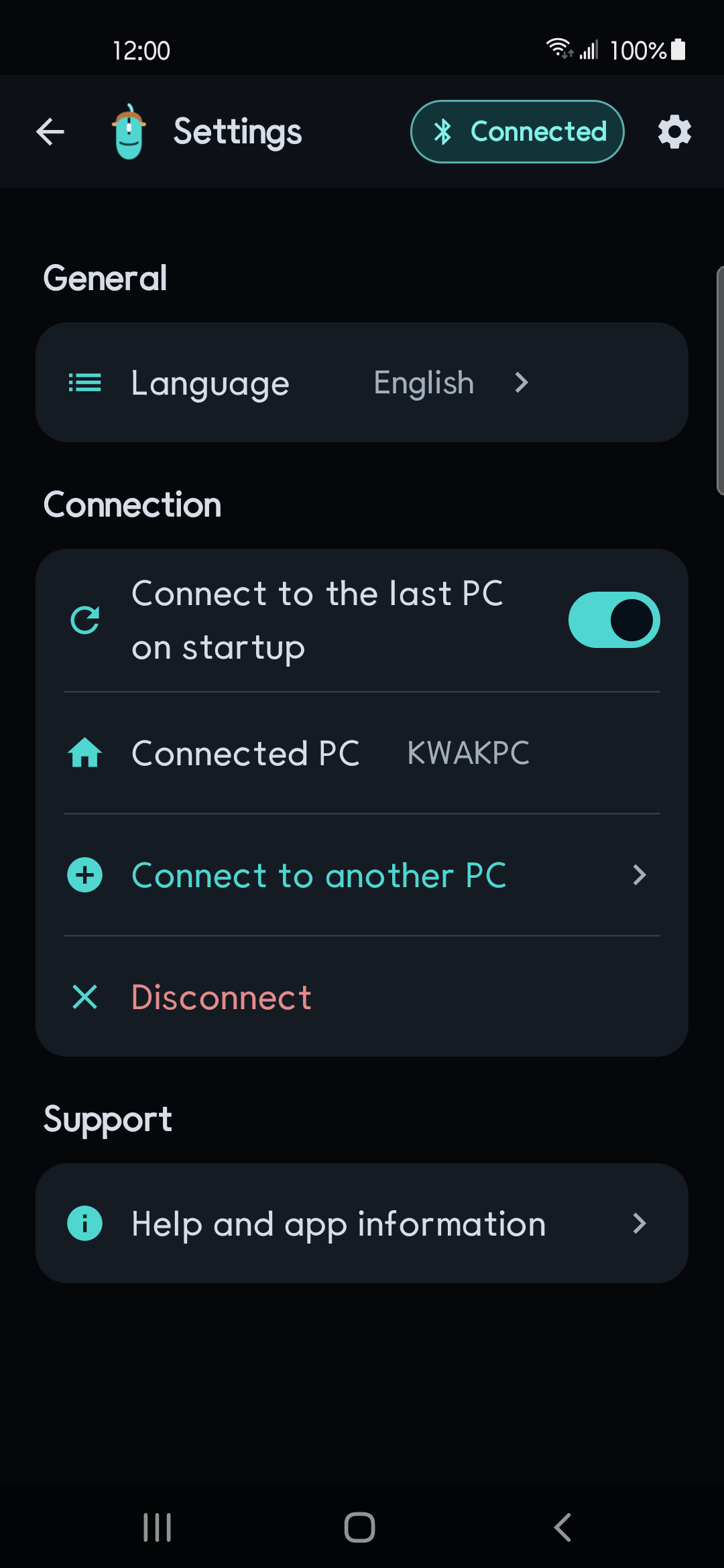
- Connected PC: view the current host, disconnect it, or choose Connect to another PC.
- Connect to the last PC on startup: tries one reconnect when the last PC is still paired.
- Language: use the system language or select English or Korean.
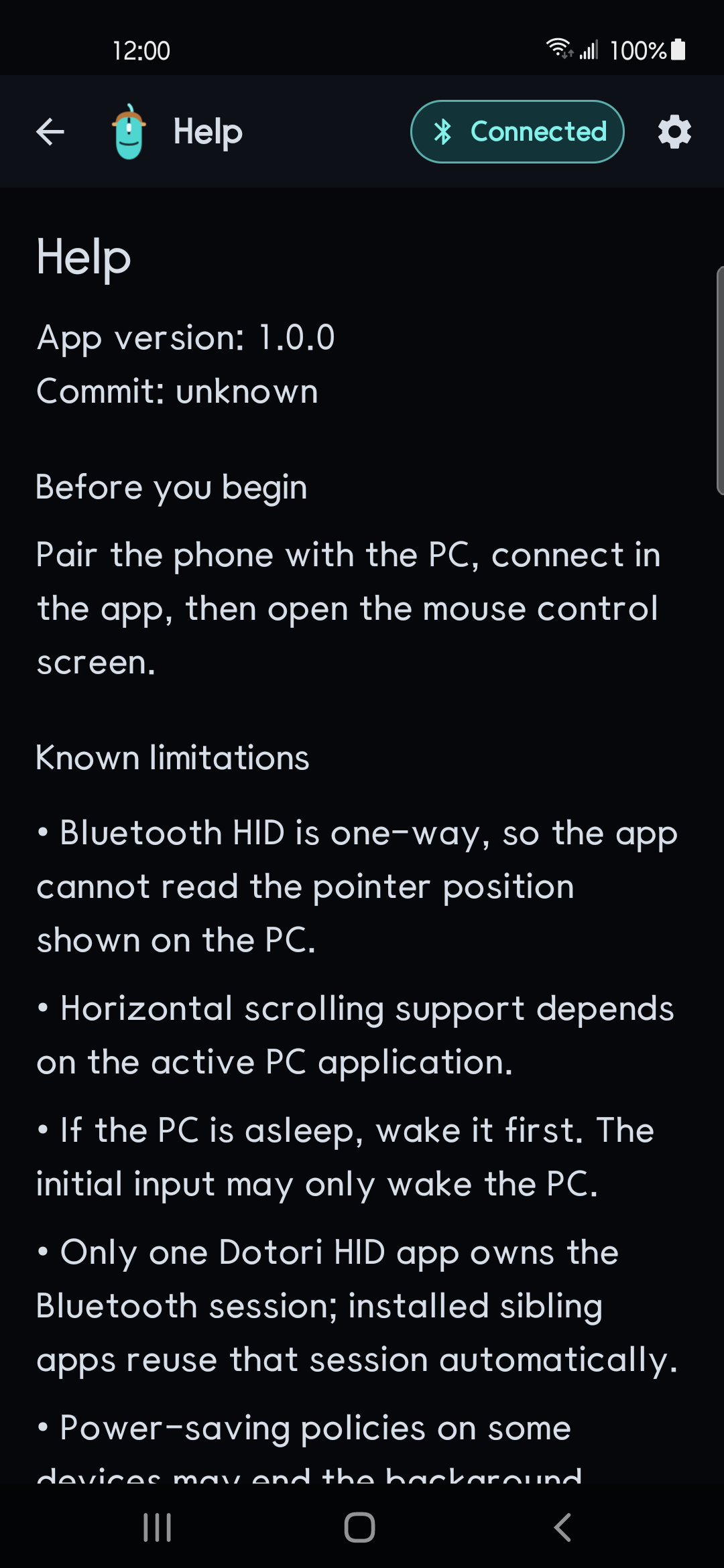
- Help and app information: review the HID requirements and host-dependent limits.
Troubleshooting
| Symptom | What to check |
|---|---|
| The PC cannot find the phone | Grant permissions, turn on Bluetooth, start the connection, and make the phone discoverable. Close another Dotori HID remote if it owns the session. |
| The remote will not open | Return to Home and wait for Connected. If the minimum report check failed, retry the connection. |
| Pointer movement is too slow or fast | Change Sensitivity between Low, Normal, and High. |
| Horizontal scrolling does nothing | Try the same control in an application that supports horizontal wheel input. The host application decides how to use it. |
| The PC woke but did not click | The first report may only wake a sleeping PC. Wait until it is awake, then repeat the input. |
Requirements and privacy
- Android 9.0 or newer on a phone with the Bluetooth HID Device profile
- A host that accepts a standard Bluetooth mouse
- No receiver dongle, account, or host software
Pointer and button reports go only to the paired host. The app cannot read the PC's pointer position or screen. See the full privacy policy.